View Crontab Jobs in Linux: Every Scenario, Explained
September 23, 2026
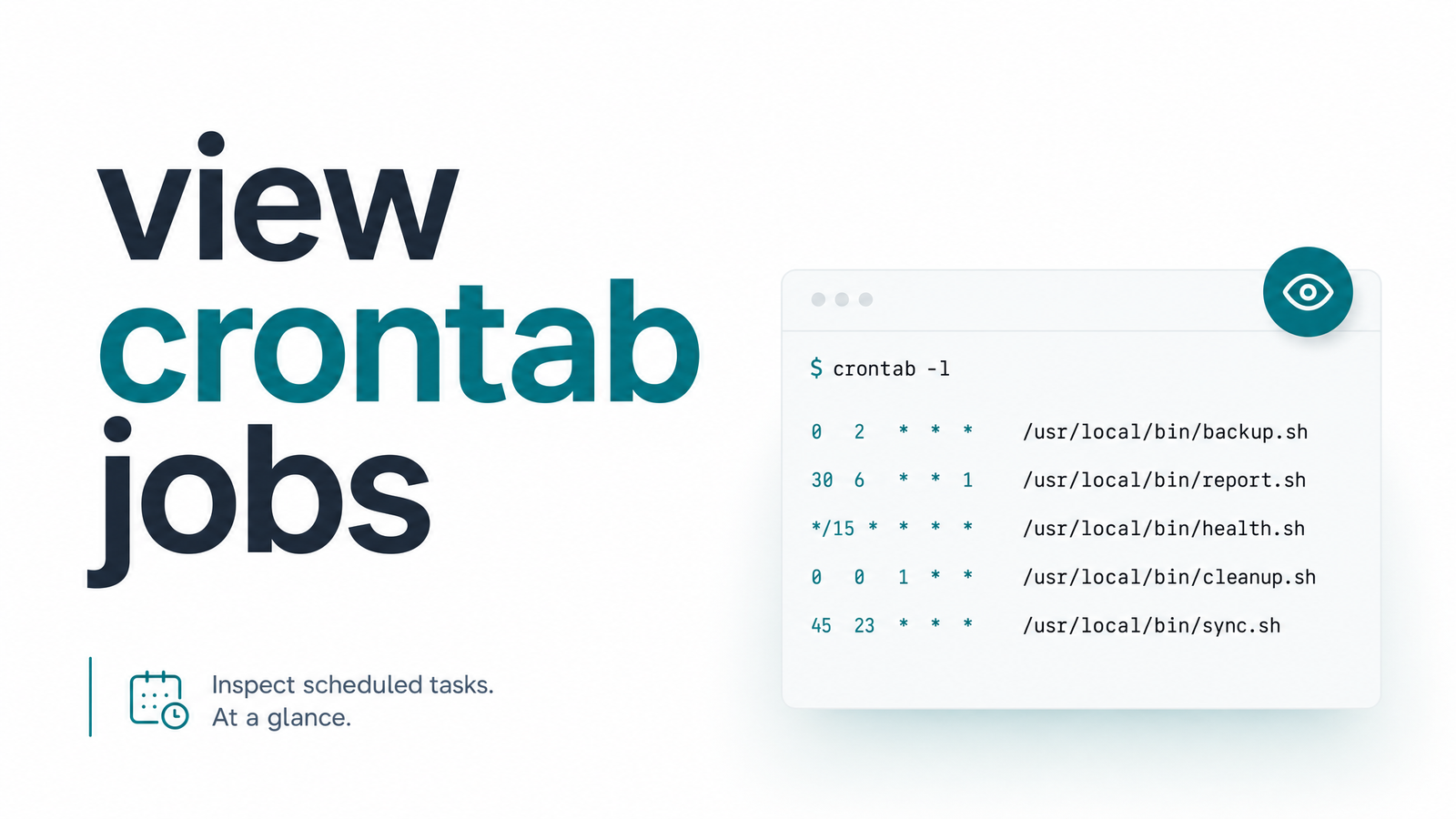
Quick Answer: View Crontab Jobs with crontab -l
To view crontab jobs for the currently logged-in user, run:
crontab -l
This prints every scheduled job in that user's crontab, one per line, in standard cron syntax — minute, hour, day of month, month, day of week, followed by the command. If the user has no crontab file, you'll see no crontab for username instead. That's the fast answer. Everything else here covers what crontab -l alone can't do: checking another user's jobs, auditing a whole server, working without the crontab binary, and figuring out whether the jobs you find are actually succeeding.
View Your Own Crontab Jobs
crontab -l lists cron jobs for whichever user you're currently logged in as. Output looks like this:
0 3 * * * /usr/local/bin/backup.sh
*/15 * * * * curl -s https://example.com/health >> /var/log/health.log
Each line is a complete scheduled task. If you need to edit rather than just view, crontab -e opens the same file in your default editor — worth knowing, since the two flags are easy to confuse.
The "no crontab for user" message isn't necessarily an error — it usually just means that user has never created a crontab file. New service accounts, freshly provisioned servers, and containers all commonly return this with zero jobs configured anywhere. It signals a real problem only if you expected jobs to exist for that user, which usually means they were created under a different account — a common mix-up when switching between your personal user and a deploy or app user via sudo -u.
View Another User's or Root's Crontab
To view cron jobs for another user, you need elevated privileges:
sudo crontab -l -u username
Regular users can only view and edit their own crontab by default — there's no way around this without sudo or root access, and that's intentional. Crontabs execute arbitrary commands on a schedule, so letting any user peek at (or edit) another user's jobs would be a privilege escalation risk. If you're auditing a server you've inherited, checking root's schedule is often the first move, since root crontabs frequently run backups, cleanup scripts, or security scans:
sudo crontab -l -u root
If this returns "no crontab for root," don't assume root has zero scheduled work — root-level automation is often defined outside any user's crontab entirely, which brings us to the next section.
Check System-Wide Cron Jobs (Beyond crontab -l)
Here's the gap most people miss: crontab -l only shows jobs stored in a specific user's personal crontab file, not system-wide cron jobs, which live in separate locations.
The main one is /etc/crontab, a system-level crontab that includes an extra field — the user the job should run as — right after the time fields. Then there's /etc/cron.d/, a directory where individual packages and admins drop standalone cron files, often installed automatically during software setup. Finally, /etc/cron.hourly/, /etc/cron.daily/, /etc/cron.weekly/, and /etc/cron.monthly/ hold executable scripts that cron runs on their named schedule via run-parts, with no crontab syntax at all.
To view all cron jobs on a system — not just one user's — check each of these:
cat /etc/crontab
ls /etc/cron.d/
cat /etc/cron.d/*
ls /etc/cron.hourly /etc/cron.daily /etc/cron.weekly /etc/cron.monthly
Skipping this step is the most common reason a server audit misses jobs entirely: someone runs crontab -l for every account, finds nothing suspicious, and never realizes a package or previous admin dropped a job straight into /etc/cron.d/. On systems using systemd timers instead of (or alongside) classic cron, also check systemctl list-timers for scheduled units that never touch a crontab file at all.
Viewing Crontab Files Directly (No crontab Command Access)
In minimal Docker images, restricted shells, or locked-down containers, the crontab binary may not even be installed, so crontab -l fails outright. In that case, you can often read the underlying crontab files directly.
On most Debian- and Ubuntu-based systems, per-user crontabs are stored at:
/var/spool/cron/crontabs/username
On Red Hat, CentOS, and some other distros, the path is slightly different:
/var/spool/cron/username
Reading these files with cat or less gives you the same content crontab -l would show, without needing the crontab binary — handy for scripting, log collection, or auditing a container image where installing extra tooling isn't practical. Note that these files are typically only readable by root, so you still need appropriate permissions to open them.
What crontab -l Can't Tell You
Every method above gets you the same fundamental thing: a schedule. You know when a job is supposed to run and what command it runs. None of it tells you whether that job actually ran, succeeded, silently failed, or is currently hung and blocking the next scheduled invocation.
That gap matters more than it looks. Cron itself doesn't track execution history. Unless a job explicitly logs its own output, a failed backup script and a successful one look identical in crontab -l — the schedule doesn't change either way. Some admins lean on the crontab MAILTO variable for email notifications, but that approach fails more often than people expect, especially on servers without a properly configured mail transfer agent.
This is the exact problem Cronevra solves. Instead of just confirming a job is scheduled, Cronevra tracks execution history for the HTTP jobs you monitor, flags failures and timeouts, and sends recovery alerts when something that used to run reliably stops checking in. If you've just confirmed what's scheduled across a server, the natural next step is confirming it's actually working — see plans on the pricing page if you want that visibility without building custom logging around every script. And if you're staring at an unfamiliar schedule expression while auditing, review what a cron expression's syntax and fields actually mean or the valid ranges for each cron field before assuming a job is misconfigured.
Frequently Asked Questions
How do I view cron jobs for all users on a Linux server?
There's no single command that lists every user's crontab at once. Run sudo crontab -l -u username for each account, then also check /etc/crontab, /etc/cron.d/, and the /etc/cron.hourly through /etc/cron.monthly directories, since those hold system-wide jobs outside any individual user's crontab.
Why does crontab -l say "no crontab for user"?
It usually just means that user has never created a crontab file — not that something is broken. It's a real concern only if you expected jobs to exist for that account, in which case they were likely created under a different user or defined in a system-wide location like /etc/cron.d/ instead.
Can I view crontab jobs without using the crontab command?
Yes — read the crontab file directly from disk. On Debian/Ubuntu it's typically at /var/spool/cron/crontabs/username, while Red Hat-based systems use /var/spool/cron/username. This works in containers or restricted shells where the crontab binary isn't installed, as long as you have read permission on the file.
What's the difference between crontab -l and looking at /etc/crontab?
crontab -l shows only the calling user's personal crontab, while /etc/crontab is a separate system-level file with an extra "run as user" field, used for jobs not tied to one person's account. A complete audit requires checking both, plus /etc/cron.d/.
How do I view another user's crontab if I have sudo access?
Run sudo crontab -l -u username, substituting the account you want to inspect. This requires root or sudo privileges — regular users cannot view crontabs belonging to other accounts by design, since crontabs can execute arbitrary commands.
Does crontab -l show me if a job actually ran successfully?
No. crontab -l only displays the schedule and command for each job — cron itself doesn't track execution outcomes. To know whether a job actually ran, succeeded, failed, or hung, you need separate logging, MAILTO notifications (often unreliable), or a monitoring tool like Cronevra that records execution history and alerts on failures.