List Cron Tasks: Every User, System, Docker & K8s
August 20, 2026
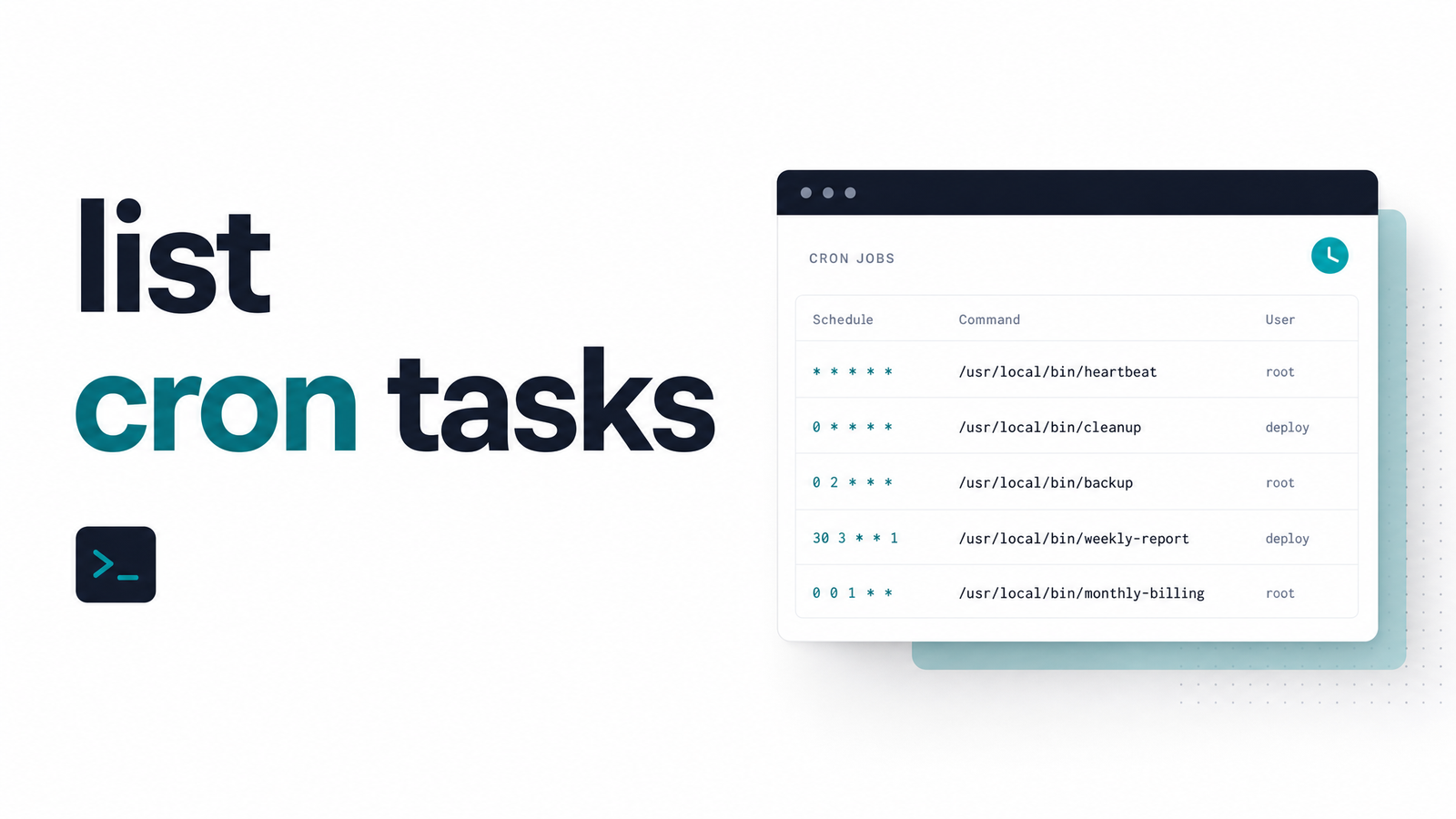
What "Listing Cron Tasks" Actually Involves
Most people who search for how to list cron tasks assume there's one command and one answer. In practice, there rarely is. Scheduled jobs live in several places at once: a user's personal crontab, root's crontab, system directories like /etc/cron.d, container images, and increasingly, Kubernetes clusters and cloud scheduler services. If you inherited a server, joined a team mid-project, or you're trying to figure out which job just broke production at 3 a.m., you need a full inventory across every place a job could be hiding.
This article walks through how to list all cron tasks in each of these contexts, then addresses the problem nobody mentions in the standard tutorials: a list only tells you what's scheduled, not what's happening. That distinction is where most on-call debugging time actually goes.
Listing Cron Tasks for a Single User
The starting point is always the same command:
crontab -l
This prints the current user's crontab — the list of cron jobs scheduled under whatever account is running the command. If nothing is configured, you'll get a "no crontab for user" message rather than an empty list, which is a useful signal in itself.
A few variants matter. Running crontab -l -u username lets you specify a user explicitly (permissions allowing), and crontab -e opens the same file for editing, the natural next step once you've confirmed what's there — see our deeper look at cron editors and builders if you're managing complex schedules by hand. But crontab -l only shows jobs registered through the crontab system for that one account. It says nothing about root's jobs, system-wide entries, or anything scheduled by another service — usually where the real hunt begins.
Listing Cron Tasks for Other Users and System-Wide
If you need to list cron jobs for all users on a machine, you can't rely on a single command per account — you need to check several sources.
For another specific user, sudo crontab -l -u is the direct route, assuming you have root access. But individual user crontabs are only part of the picture. System-wide cron jobs typically live in /etc/crontab, which has an extra column specifying which user each line runs as. Alongside that, /etc/cron.d/ holds drop-in files, often installed by packages or provisioning scripts, that follow the same format. Finally, /var/spool/cron (or /var/spool/cron/crontabs on some distributions) is where individual user crontabs are actually stored on disk, which matters if you're auditing a server rather than trusting crontab -l output alone.
Piecing all of this together by hand, across multiple servers, is exactly the kind of task that turns into a spreadsheet nobody updates. If you're managing cron at any real scale, our practical framework for crontab management covers the edge cases — permissions, package-managed cron.d entries, and stale jobs — in more depth than we can here.
Listing Cron Tasks in Docker, Kubernetes, and Cloud Schedulers
Containerized and cloud-native environments change where you look, not the underlying question.
Inside a Docker container, cron often runs as its own process, so you list it the same way you would on a bare-metal host, just prefixed with an exec call: docker exec . If cron isn't installed inside the container at all, check the entrypoint script or image build — some setups schedule jobs externally instead.
In Kubernetes, there's no crontab file to read — scheduling is a cluster resource. To list Kubernetes CronJobs across a namespace, run kubectl get cronjobs, or add --all-namespaces to see everything in the cluster at once. This gives you schedule, suspend status, and last-scheduled time, a step up from a plain crontab listing, but it's still just cluster metadata — it doesn't tell you whether the job's actual workload succeeded.
Cloud schedulers add a third pattern entirely. AWS EventBridge Scheduler and GCP Cloud Scheduler both expose list commands through their respective CLIs (aws scheduler list-schedules, gcloud scheduler jobs list) that return the scheduled definitions, similar in spirit to crontab -l but scoped to a cloud account or project rather than a machine.
Why a Static List Doesn't Tell You What You Actually Need to Know
Here's the gap every one of these commands shares: crontab -l, kubectl get cronjobs, and the cloud scheduler list commands all show you what's supposed to run — not what actually happened. None of them tell you if a cron job failed silently last night, whether last week's data export completed, or whether a job was deleted from the crontab but its downstream dependents are still expecting output that never arrives.
This is how orphaned cron jobs accumulate: a task gets removed from one server's crontab during a migration, but nobody checks whether it was also removed from the three other places it was scheduled. Meanwhile, execution history — the actual record of runs, exit codes, and durations — simply doesn't exist unless something was set up to capture it. Teams typically discover this the hard way, when a report stops arriving and the investigation starts with "wait, which job even generates this?"
Treating crontab -l output as a health check is the most common mistake here. It's a list of intentions, not a log of outcomes.
Turning a One-Time List Into a Live, Monitored Inventory
The fix isn't a better listing command — it's replacing the list with a dashboard that stays current on its own. Cronevra works this way: instead of running crontab -l across a dozen servers and mentally merging the output, every monitored task shows up in one dashboard with its last run time, current status, and duration, so you can see at a glance which jobs are healthy and which have gone quiet.
When a job fails or simply doesn't check in when expected, Cronevra fires an alert instead of leaving you to notice the silence days later. That closes the gap described above — the list stops being a snapshot from whenever you last ran a command and becomes a live record of cron job monitoring across every server, container, or cloud scheduler you've connected. If you're ready to see what that looks like for your own setup, compare plans on the Cronevra pricing page and turn your one-time list into a dashboard that updates itself.
Frequently Asked Questions
What's the command to list all cron jobs for the current user?
crontab -l lists all cron jobs scheduled under the current user's account. If no crontab exists for that user, the command returns a "no crontab for user" message rather than an empty result.
How do I list cron jobs for a different user without switching to their account?
Run sudo crontab -l -u if you have root or sudo privileges. This prints that user's crontab without requiring you to log in as them.
Can I list cron jobs running inside a Docker container?
Yes — run docker exec to view the crontab inside a running container. If cron isn't found, check whether the schedule is defined outside the container, such as in the image's entrypoint script or an external scheduler.
How do I see all Kubernetes CronJobs in a cluster?
Use kubectl get cronjobs for a specific namespace, or add --all-namespaces to list every CronJob across the cluster. This shows schedule and last-run metadata but not whether the underlying job actually succeeded.
Does crontab -l show whether a job succeeded or failed?
No — crontab -l only displays the schedule and command definitions, not execution results. To know if a job actually ran, and whether it succeeded, you need separate logging or a monitoring tool that tracks execution history and alerts on failure.
How can I keep an accurate list of cron jobs across multiple servers?
Manually, this means checking each server's crontab, /etc/crontab, and /etc/cron.d/ individually, which quickly becomes unreliable at scale. A monitoring dashboard like Cronevra keeps a live, centralized inventory automatically, showing last run time and status for every job without repeated manual audits.