Crontab Cheat Sheet: Syntax, Symbols & Schedules
August 17, 2026
What Is a Crontab Cheat Sheet (and What This One Covers)
A crontab cheat sheet lays out cron's syntax, symbols, and common schedule patterns so you don't have to re-read man 5 crontab or dig through scattered Stack Overflow answers every time you need to schedule a job. This one is built to be bookmarked and Ctrl+F'd: it covers the five-field format, every special character, the @daily/@reboot-style shorthand strings, a table of the schedules developers search for most, and — because syntax isn't the whole story — the reasons a perfectly valid crontab entry still fails to run as expected.
Whether you're writing a fresh entry with crontab -e or auditing existing jobs with crontab -l, the goal is the same: get the schedule right the first time, and know what to check when it doesn't behave.
Crontab Syntax: The 5 Fields Explained
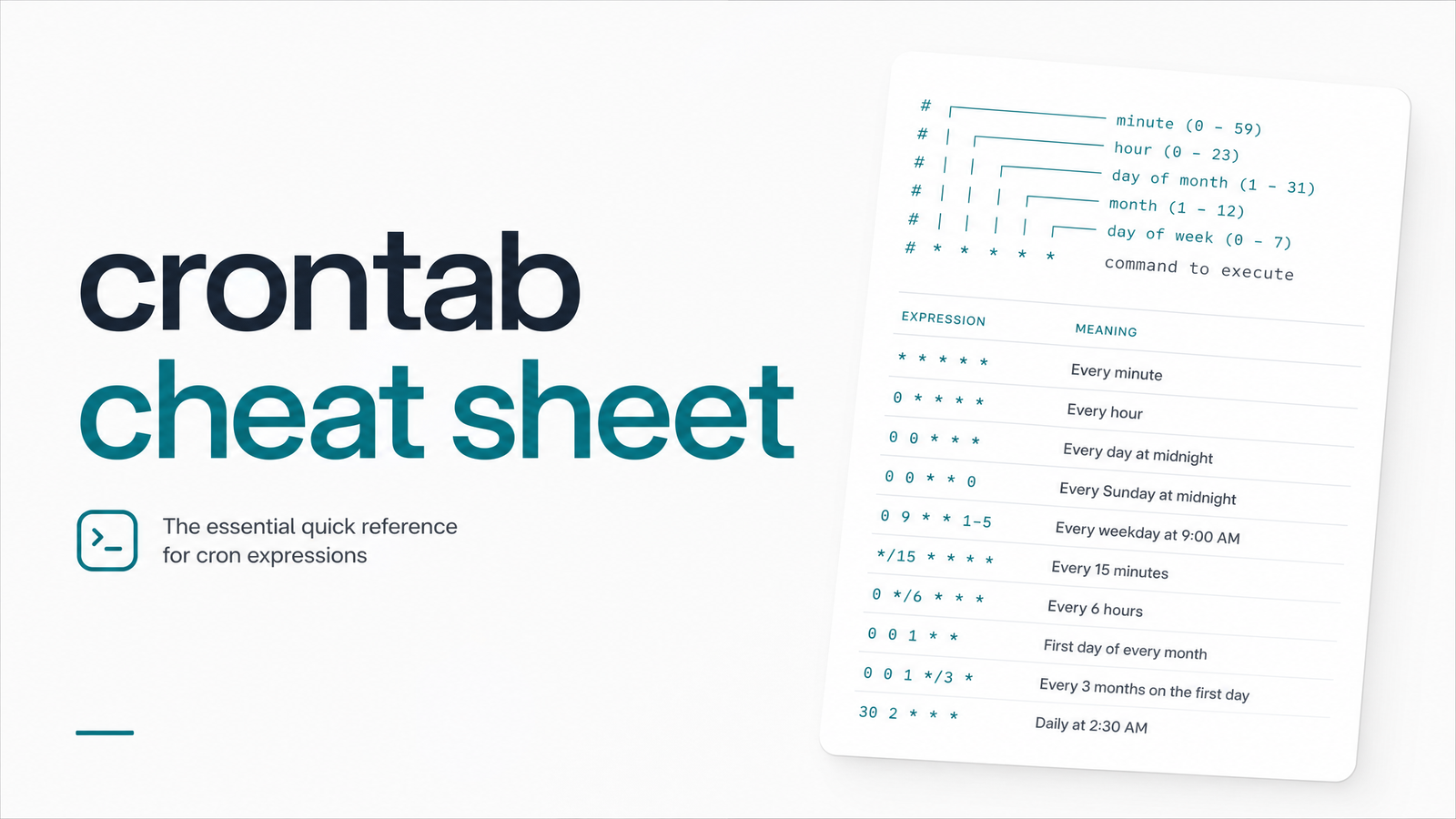
Every crontab line follows the same cron expression format — five time-and-date fields followed by the command to execute. Get the order wrong and the job either won't run, or worse, runs at the wrong time silently.
| Field | Allowed Values | Description |
|---|---|---|
| Minute | 0–59 | Minute of the hour |
| Hour | 0–23 | Hour of the day (24-hour format) |
| Day of month | 1–31 | Day of the month |
| Month | 1–12 | Month of the year |
| Day of week | 0–7 (0 and 7 = Sunday) | Day of the week |
The command follows as the sixth position, separated by whitespace: minute hour day-of-month month day-of-week command.
Example: 30 2 1 * * /usr/bin/backup.sh
30— minute 302— hour 2 (2:00 AM)1— the 1st day of the month*— every month*— any day of the week/usr/bin/backup.sh— the command to run
Read together: run backup.sh at 2:30 AM on the first day of every month, regardless of the weekday. This crontab syntax pattern — fixed date, wildcard weekday — is one of the most common in production backup and reporting jobs.
Crontab Special Characters and Operators
Crontab special characters are where most scheduling mistakes happen, because *, */5, and 1-5 look similar but mean very different things.
| Character | Meaning | Example | What it does |
|---|---|---|---|
* |
Any value / every unit | * * * * * |
Runs every minute |
, |
List separator | 0 9,17 * * * |
Runs at 9:00 and 17:00 |
- |
Range of values | 1-5 in day-of-week |
Monday through Friday |
/ |
Step values (increments) | */5 in minute field |
Every 5 minutes |
? |
"No specific value" (some systems) | Used in Quartz/Java cron, not POSIX cron | Avoid in standard crontab |
The cron asterisk meaning is simple — "every possible value for this field" — but it's easy to misuse when combined with the crontab slash operator. */5 in the hour field means "every 5th hour" (0, 5, 10, 15, 20), not "every 5 minutes" — that only applies in the minute field. Note that ? is a Quartz/Java scheduler convention, not part of standard POSIX cron or Vixie cron; using it in a Linux crontab will typically cause a syntax error.
Cron Shorthand Strings (@daily, @hourly, @reboot)
Most modern cron implementations, including Vixie cron (the version shipped on most Linux distributions), support nonstandard shorthand strings that replace the five-field syntax entirely.
| Shorthand | Equivalent | Runs |
|---|---|---|
@yearly / @annually |
0 0 1 1 * |
Once a year, midnight Jan 1 |
@monthly |
0 0 1 * * |
Once a month, midnight on the 1st |
@weekly |
0 0 * * 0 |
Once a week, midnight Sunday |
@daily / @midnight |
0 0 * * * |
Once a day, at midnight |
@hourly |
0 * * * * |
Once an hour, at minute 0 |
@reboot |
— | Once, at system startup |
These shorthand strings are readable and convenient, but they're not part of the POSIX cron standard — they're extensions. @reboot entries in particular depend on your init system correctly running cron at boot, and behavior can vary across containers, minimal Linux images, and systems using systemd timers instead of cron entirely. If you're deploying across mixed environments, verify the shorthand is supported rather than assuming portability.
Quick Reference: Common Crontab Schedules
The fastest way to write cron syntax correctly is to start from a known-good pattern rather than building one from scratch.
| Schedule | Crontab Syntax |
|---|---|
| Every minute | * * * * * |
| Every 5 minutes | */5 * * * * |
| Every hour | 0 * * * * |
| Every 4 hours | 0 */4 * * * |
| Daily at midnight | 0 0 * * * |
| Weekdays only, 9 AM | 0 9 * * 1-5 |
| First day of month | 0 0 1 * * |
These cover the majority of real-world scheduling needs, but every setup has edge cases — running multiple times a day at irregular intervals, skipping specific dates, or combining day-of-month and day-of-week logic. For deeper pattern breakdowns and interval math, see Crontab Management: A Practical Framework at Scale, especially if you're managing more than a handful of jobs.
Common Crontab Mistakes That Cause Silent Failures
Syntactically valid crontab entries fail in production more often than malformed ones — and that's the gap a cheat sheet alone can't close.
Timezone assumptions. Cron typically runs on the server's local time, not UTC, unless explicitly configured otherwise. A crontab timezone issue is one of the most common causes of jobs running "on schedule" but at the wrong wall-clock hour — especially after a server migration or in distributed teams working across zones.
Missing PATH and environment variables. Cron runs with a minimal environment, not your shell's. Scripts that work fine when run manually often fail under cron because PATH, HOME, or other variables your script depends on simply aren't set.
Wrong day-of-week numbering. Both 0 and 7 mean Sunday, which trips people up when translating a schedule from another system or documentation source that starts the week on Monday.
No output redirection. Cron emails or discards command output by default. Without >> /var/log/job.log 2>&1 at the end of the line, errors vanish instead of surfacing — meaning a cron job silent failure can go unnoticed for days.
None of these are crontab syntax errors — the line parses fine, the job "runs" — but the outcome is wrong or missing entirely. This is exactly why crontab not running as expected is so often a runtime problem, not a formatting one.
Syntax Is Correct — Now What? Verifying and Monitoring Your Jobs
A cheat sheet solves the first half of the problem: it stops you from writing malformed cron expressions. It does nothing for the second half — confirming the job actually executed, finished, and did what it was supposed to. That requires a verification step and, ideally, ongoing crontab monitoring rather than manually checking logs after the fact.
If you want a structured way to confirm a newly written entry works before trusting it in production, walk through Check Crontab: The Full Verification Workflow. It covers testing execution, reading logs, and catching the kind of failures that don't throw an error.
Frequently Asked Questions
What are the 5 fields in a crontab entry?
The five fields, in order, are minute (0–59), hour (0–23), day of month (1–31), month (1–12), and day of week (0–7, where both 0 and 7 mean Sunday). The command to execute follows as a sixth, separate value.
What does an asterisk (*) mean in crontab?
An asterisk means "every possible value" for that field. In the minute field it means every minute; in the month field it means every month; combined across all five fields, * * * * * runs a job every single minute.
How do I schedule a cron job to run every 5 minutes?
Use */5 * * * *, which applies a step value of 5 to the minute field. This triggers the job at minute 0, 5, 10, 15, and so on, every hour of every day.
What's the difference between @daily and 0 0 * * * in crontab?
They're functionally identical — @daily is shorthand that expands to 0 0 * * *, running once at midnight every day. The difference is portability: @daily is a nonstandard extension supported by most cron implementations but not guaranteed on every system, while the five-field syntax is universally recognized.
Does crontab use the server's timezone or UTC?
Crontab uses the system's local time by default, not UTC, unless the server or cron daemon is explicitly configured to use UTC. This is a frequent source of confusion after server migrations or when managing jobs across regions — always confirm the server's configured timezone rather than assuming it.
How do I test if my crontab syntax is correct before saving it?
Most systems validate syntax automatically when you save with crontab -e, rejecting malformed lines with an error. That only confirms the syntax parses, though — it doesn't confirm the job runs successfully, so following up with a verification workflow is still necessary.
Getting the syntax right is only half the job. Cron entries with flawless formatting still fail silently from timeouts, crashed servers, missing dependencies, or scripts that exit with errors nobody sees — cron itself won't alert you. Pair correct scheduling with actual failure visibility using Cronevra, or check the pricing page to see what monitoring your jobs would look like in practice.