How to Create a Crontab Job on Linux (Command Line Guide)
September 16, 2026
What "Creating a Crontab Job" Actually Means
A crontab job lives inside a per-user job table, managed exclusively through the crontab command — it is not the same file as /etc/crontab or the scripts in /etc/cron.d. Those system-level files are edited directly as root and include an extra "user" field to specify who runs the job. A user crontab is created and modified only through crontab -e, never by hand-editing a file path, because cron expects its internal format and permissions.
Plenty of "my cron job doesn't work" reports trace back to someone editing the wrong file, or expecting /etc/crontab syntax to work in a personal crontab (it won't — the user field breaks it). This guide sticks to the personal, per-user crontab workflow: opening it safely, writing valid syntax, adding a command that actually executes, and confirming it stuck. If you're still deciding between crontab, systemd timers, or a cloud scheduler, the comparison of every cron job method is a better starting point than this one.
Step 1: Open Your Crontab File with crontab -e
Run crontab -e in your terminal. This is the only command you should use to edit crontab — it opens your personal job table, validates the file on save, and installs it for the cron daemon to read. If you've never created a crontab job before, the command creates an empty temporary file for you; there's nothing to initialize manually first.
The first time you run it, you may be prompted to choose an editor, or it may drop you into whatever is configured system-wide (often vi or nano). If you'd rather not fight with vi motions, set your preferred editor first:
export VISUAL=nano
crontab -e
Add that export line to your .bashrc or .zshrc if you want it to stick permanently. EDITOR works as a fallback if VISUAL isn't set. Whichever editor you choose, the workflow is identical: edit, save, exit — cron handles installing it.
Step 2: Write the Five Time Fields
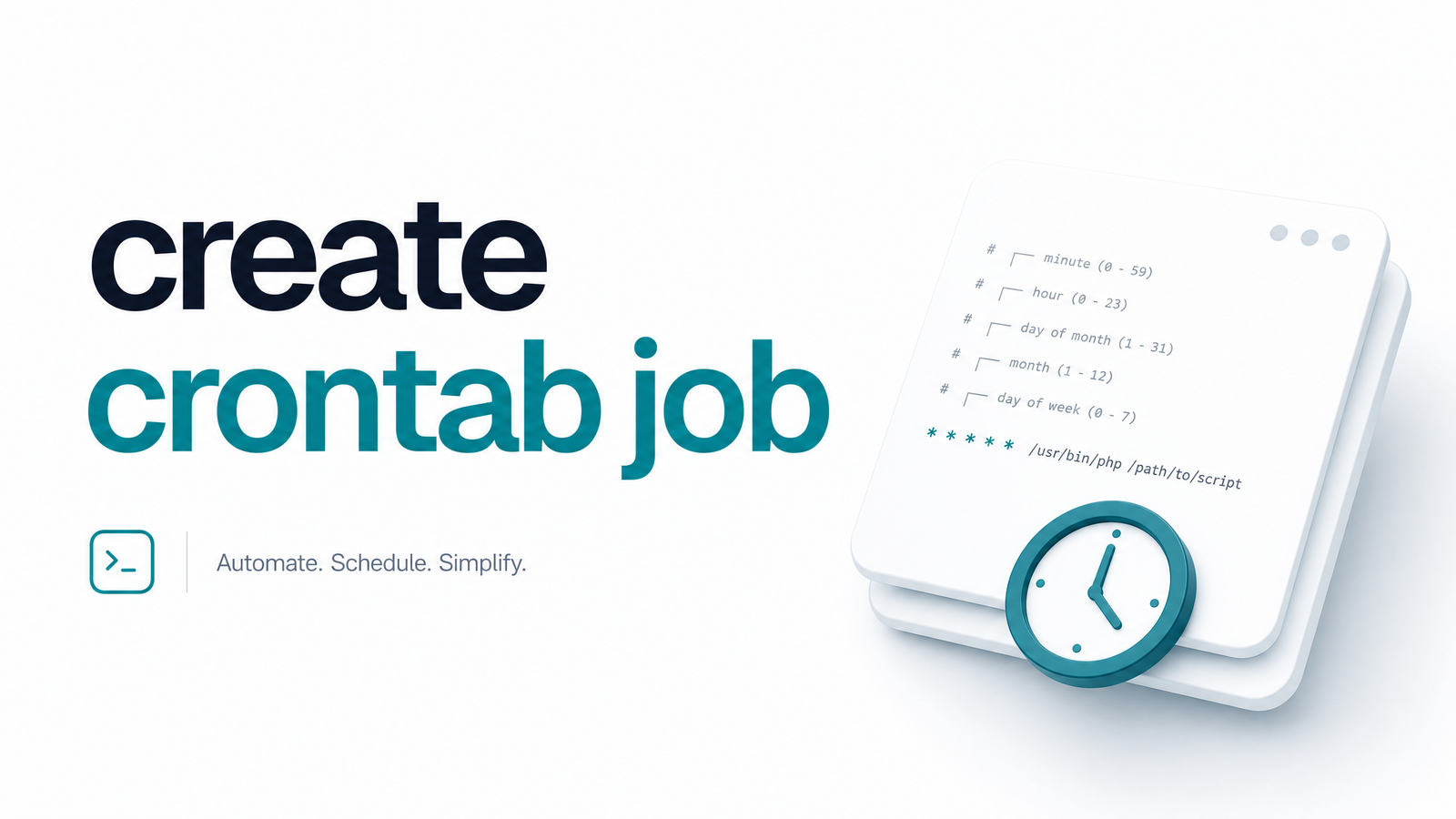
Every crontab entry starts with five time fields, in this exact order:
minute hour day-of-month month day-of-week command
Each field accepts a number, a range (1-5), a step (*/15), a comma list (1,15,30), or * for "every value." So 0 3 * * * means 3:00 AM daily, and */15 * * * * means every fifteen minutes. Cron also supports shorthand strings that replace all five fields: @daily (equivalent to 0 0 * * *), @hourly, @reboot (runs once at startup), and a few others. @reboot /usr/local/bin/warm_cache.sh is a common use for services that need to prime state after a restart.
This is also where subtle scheduling bugs creep in — a job that "should" run at 2 AM daily but doesn't, or fires twice around a clock change, is often a timezone or DST issue rather than a syntax mistake. If your servers span time zones or you're scheduling anything DST-sensitive, read how cron handles clocks, timezones, and DST bugs before assuming the syntax is wrong.
Step 3: Add the Command Safely
This is where a syntactically perfect entry still fails to run anything. Cron executes with a minimal environment — no full PATH, no login shell profile, none of the aliases or variables your interactive terminal has. Four habits prevent almost every "it works manually but not from cron" complaint:
- Use absolute paths for everything. Not
python script.py, but/usr/bin/python3 /home/user/scripts/script.py. Without an absolute path, cron may not find the binary or script, since its defaultPATHis much shorter than your shell's. - Set PATH and SHELL explicitly if needed. Add lines like
PATH=/usr/local/bin:/usr/bin:/binat the top of the crontab file, applied to every job below it. - Redirect output deliberately. Append
>> /var/log/myjob.log 2>&1so stdout and stderr land somewhere you can inspect, instead of vanishing or triggering unwanted mail. - Quote and escape percent signs. A literal
%is treated by cron as a newline unless escaped with\%— a frequent gotcha in date-formatted commands.
A safe, realistic entry looks like this:
30 2 * * * /usr/bin/php /var/www/app/artisan schedule:run >> /var/log/schedule.log 2>&1
Step 4: Save, List, and Confirm the Job Was Created
Saving in your editor installs the crontab automatically — there's no separate "apply" step. To confirm the job made it in, run:
crontab -l
This lists every job currently registered for your user. If your new line isn't there, the save didn't take, or you edited the wrong user's crontab. Get in the habit of running crontab -l immediately after every edit; it's the easiest way to catch a typo or a silently discarded save.
One command deserves a warning of its own: crontab -r removes your entire crontab, immediately, with no confirmation prompt and no undo. It's one letter away from -e, and typing it out of muscle memory has wiped out years of accumulated jobs for plenty of engineers. Always double-check before hitting enter on -r, and consider keeping a backup with crontab -l > crontab.bak.
Common Reasons a New Crontab Job Doesn't Run
If crontab -l shows your job but it never executes, work through these in order:
- Permissions. If
/etc/cron.allowexists, only listed users can use cron; if it doesn't exist but/etc/cron.denydoes, anyone listed there is blocked. A "permission denied" or a job that silently never runs can both trace back to this. - Missing environment variables. Anything your script assumes is present in an interactive shell —
NODE_ENV, customPATHentries, virtualenv activation — has to be set explicitly inside the crontab or the script itself. - Wrong user context. A job created under your account won't run as root, and vice versa — a common surprise for anyone deploying with a service account.
- Cron daemon not running. On some minimal containers or freshly provisioned VMs,
cronorcrondisn't installed or started by default; check withsystemctl status cron(orcrond).
Your Crontab Job Is Created — Now Make Sure It Keeps Running
Getting the syntax right and confirming the job with crontab -l only proves it exists — it doesn't prove it will keep succeeding. A script can hit a network blip, exit with a non-zero code, or crash after a dependency update, and cron itself won't tell you unless you've configured MAILTO, which routes to an inbox nobody checks and gives no context on failure patterns over time.
That gap is exactly what cron job monitoring closes. Instead of relying on MAILTO and hoping someone reads it, a monitoring layer tracks every run of your crontab job, flags missed executions, and sends crontab job alerts the moment something breaks — so a failure gets caught in minutes, not discovered a week later when a report is missing. Cronevra is built for exactly this: cron failure notification without extra infrastructure, so the job you just created doesn't fail silently six months from now. If you're ready to add that layer, check the pricing to see what fits your setup.
Frequently Asked Questions
How do I create a crontab job for a specific user?
Run sudo crontab -u username -e to edit that user's personal crontab instead of your own. You need root privileges to do this for another user, and the job will run with that user's permissions and environment, not yours.
What's the difference between crontab -e and editing /etc/crontab directly?
crontab -e edits a personal, per-user job table with no user field in each line, while /etc/crontab is a system-wide file edited directly as root that requires an explicit user field per entry. Files in /etc/cron.d follow the same system-wide format as /etc/crontab. Mixing the two formats is one of the most common causes of a job that "looks right" but never runs.
Why does my new crontab job not run even though the syntax looks correct?
The most frequent causes are a missing absolute path to the command or script, a PATH that doesn't match your interactive shell, permission restrictions from cron.allow/cron.deny, or the cron daemon not running at all. Checking crontab -l confirms the job exists, but it won't reveal these environment or permission issues — those require checking logs or running the command manually with a minimal environment.
Can I create a crontab job that runs a script instead of a single command?
Yes — point the command field at the script's absolute path, such as 0 4 * * * /home/user/scripts/backup.sh, and make sure the script is executable (chmod +x) and starts with a correct shebang line. Redirecting output with >> logfile 2>&1 is especially useful for scripts, since they tend to produce more output to debug.
How do I edit or remove a crontab job after creating it?
Run crontab -e again to open the same file, edit or delete the relevant line, then save and exit as usual. To remove every job at once, use crontab -r — but be careful, since it deletes the entire crontab immediately with no confirmation.
Do I need sudo to create a crontab job?
No, not for your own crontab — any user allowed by cron.allow/cron.deny can run crontab -e without elevated privileges. You only need sudo when creating or editing a crontab job for a different user account.