Cron Job Editor: Terminal, GUI, and Online Tools Compared
September 8, 2026
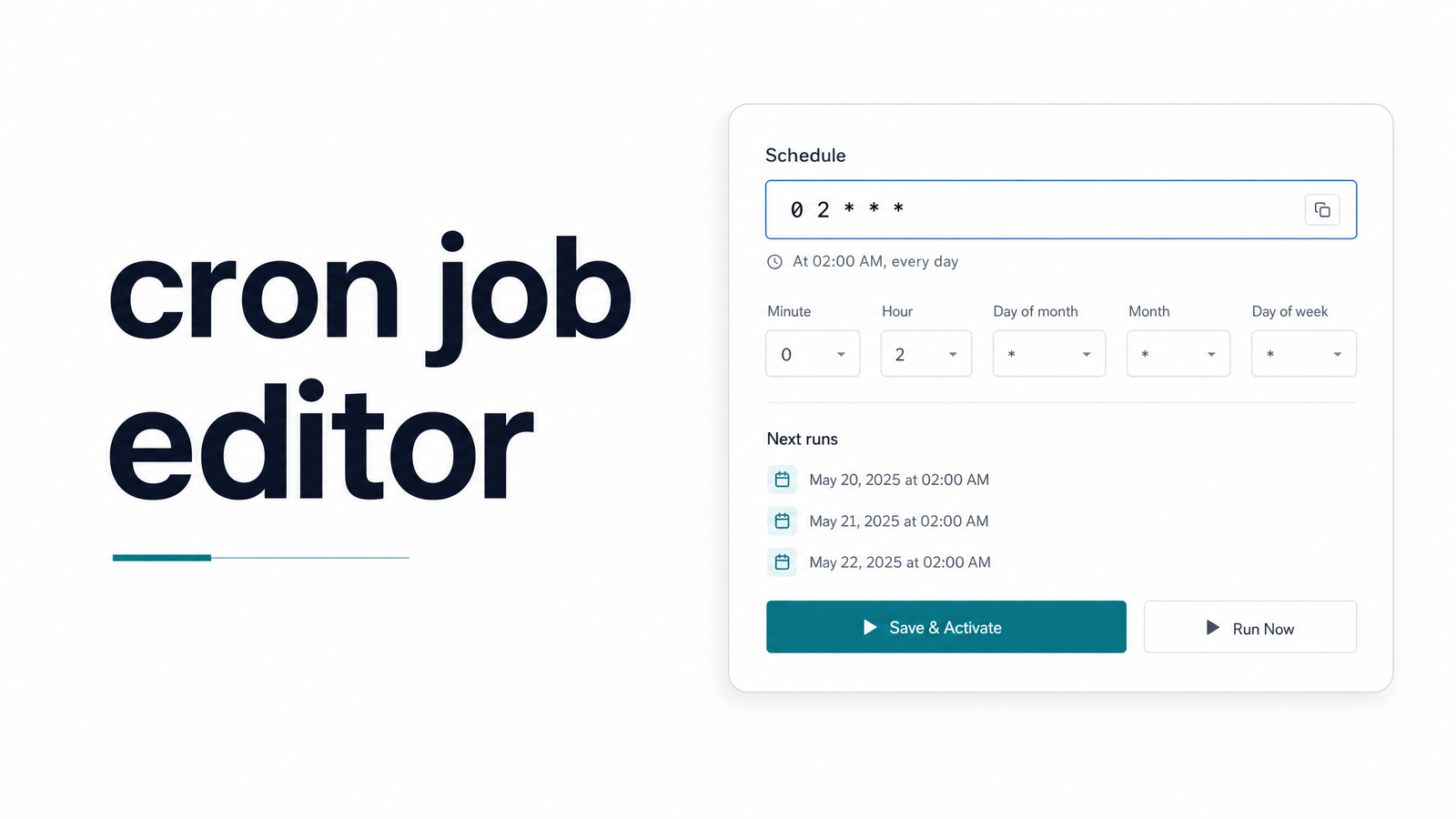
Search for "cron job editor" and you'll get results pointing to a terminal command, a drag-and-drop scheduling UI, and a browser-based syntax checker — often on the same page. The phrase covers three genuinely different tools, and picking the wrong one is how schedules get misconfigured or, worse, how a valid schedule ships without anyone noticing the job stopped running weeks later.
This guide disambiguates those three categories, walks through the safe way to use each, and then addresses the part no cron job editor actually handles: confirming the job ran.
What Counts as a "Cron Job Editor"?
A crontab editor, strictly speaking, is the terminal-based interface for modifying the schedule file that Vixie cron (the standard cron daemon on most Linux distributions) reads from. That's crontab -e, plus direct edits to /etc/crontab or files in /etc/cron.d/.
A GUI cron builder is a visual, dropdown-driven interface — often bundled into a hosting panel, CI/CD tool, or standalone app — that generates the five-field expression for you so you never type raw syntax.
A cron expression editor, usually browser-based, is a syntax playground: you paste in an expression, it tells you in plain English when the job will run, and you tweak until it matches your intent. crontab.guru is the best-known example.
All three edit or generate a schedule. None are interchangeable, and — this matters most — none tell you whether the job behind that schedule actually executed successfully.
Editing Crontab Directly: crontab -e and the Terminal Workflow
Running crontab -e opens your personal crontab in whatever editor your EDITOR environment variable points to — commonly nano or vim. Nano is friendlier for occasional edits; vim rewards familiarity with faster navigation once you know the keybindings.
Each line follows the same five-field structure: minute, hour, day of month, month, and day of week, followed by the command to run. Swapping day-of-month and day-of-week is the single most common mistake when editing a cron job in Linux by hand.
To edit another user's crontab, you need root privileges: sudo crontab -u username -e. This is common on shared servers or when managing service-account jobs; without -u, crontab -e only ever touches your own file.
A few safe-editing habits matter more than they get credit for:
- Back up the existing crontab before making changes:
crontab -l > crontab_backup.txt. If a bad edit locks out a critical job, you want a rollback path that doesn't involve reconstructing it from memory. - Check syntax before you save, not after. A malformed line doesn't crash cron — it silently skips that job, with no error, just a schedule that quietly stops firing.
- Avoid editing
/etc/crontabdirectly on a production server without a maintenance window. Cron reloads the file automatically, so a bad save takes effect immediately with no confirmation step.
For a deeper reference on syntax across recurring schedules — weekly jobs in particular tend to trip people up with day-of-week numbering — see this breakdown of weekly cron job syntax across platforms.
GUI and Visual Cron Builders
A visual cron editor trades typing for selecting: pick a frequency, pick a time, pick days of the week from checkboxes, and the tool assembles the expression behind the scenes. This is the right call when your team isn't fluent in cron syntax day-to-day, when you're setting up a one-off schedule, or when the builder is embedded in the platform you're already using — a CI/CD pipeline, a hosting control panel, or a job scheduler dashboard.
The limitation shows up with anything non-trivial: "every second Tuesday," "the last weekday of the month," or step values like "every 15 minutes between 9am and 5pm." Most GUI builders either can't express these or force an approximation. A cron job generator is genuinely useful for standard recurring schedules; for edge cases, you'll likely still need raw syntax, verified separately.
Online Cron Expression Editors (and Where They Break Down)
crontab.guru remains the fastest way to sanity-check a five-field Unix cron expression. Paste it in, get a plain-English translation, adjust until it reads correctly. For standard Vixie cron syntax, it's a reliable, zero-setup companion to editing rather than a replacement for it.
Where online cron editors break down is anything beyond that standard five-field format. Quartz Scheduler, used heavily in Java and Spring applications, adds a seconds field and an optional year field — six or seven fields total — with its own quirks around day-of-month and day-of-week that don't map cleanly onto Unix cron. A Quartz cron editor built for Spring jobs won't necessarily validate correctly in a tool designed for Vixie cron, and vice versa. Cloud schedulers add another layer: AWS EventBridge Scheduler and Google Cloud Scheduler both support cron-like expressions but layer in timezone handling and their own syntax variants that a generic online editor won't always catch.
If you're managing jobs across a Linux server, a Spring app, and a cloud scheduler, expect to use a different expression editor for each — and to double-check the platform's own documentation rather than assuming one tool covers all of them. Before deploying any expression to production, run it through a proper syntax validator rather than eyeballing it.
The Blind Spot: A Correctly Edited Job Can Still Fail Silently
Here's the gap every editor in this article shares: none confirm anything after you hit save. crontab -e writes a file. A GUI builder generates a string. crontab.guru validates that a string is well-formed. Not one touches the server where the job actually runs, and none checks whether the command exited successfully, timed out, or ran at all.
That distinction — syntax correctness versus execution success — is exactly where cron jobs fail silently. A dependency changes, a script throws an unhandled exception, a server restarts and the cron daemon doesn't pick back up the way you assumed. The schedule is edited perfectly. The job simply doesn't run, or runs and fails, and nothing in your editing tool will tell you. This is precisely the failure mode explored in this look at why Unix cron jobs fail silently — it's a monitoring problem, not an editing one, and no amount of syntax care solves it.
Closing the Loop: From Editing to Monitoring
Editing the schedule is table stakes. Knowing it ran is what actually protects you. Cron job monitoring works by having each scheduled job "check in" — a lightweight HTTP ping when it starts and finishes — so you get an actual execution history instead of an assumption. Miss a check-in, and cron job alerts fire immediately instead of you finding out three failed reports later.
Once your schedule is edited and validated, connect it to something that watches for the absence of a heartbeat, not just the presence of a correct expression. Cronevra tracks cron execution history automatically and alerts you the moment a run fails or doesn't check in on time — closing the exact gap crontab -e, GUI builders, and online editors all leave open. Check the pricing page to see which plan fits your job count, and stop finding out about failures secondhand.
Frequently Asked Questions
What's the difference between a cron job editor and a cron job generator?
A cron job editor modifies or validates an expression you already have — crontab -e, an online syntax checker — while a cron job generator builds the expression for you from plain-language choices like frequency and time. Generators are faster for standard schedules; editors give you full control for edge cases generators can't express.
Can I edit a cron job without using the terminal?
Yes — GUI cron builders and online expression editors both let you set or modify a schedule without touching the terminal. GUI builders use dropdowns and checkboxes, while online tools like crontab.guru let you type an expression directly in a browser and see its meaning translated instantly.
Is crontab.guru safe to use for production cron expressions?
It's safe as a syntax sanity-check for standard five-field Unix cron expressions, but it doesn't validate against your actual server environment or confirm the job will execute successfully. Treat it as a pre-deployment check, not a substitute for testing or monitoring the job after deployment.
How do I edit a specific user's crontab on Linux?
Run sudo crontab -u username -e, which requires root or sudo privileges. Without the -u flag, crontab -e only opens and edits your own personal crontab, not another user's.
Do online cron editors work for Quartz or Spring cron expressions?
Not reliably — most general-purpose online cron editors are built for standard five-field Vixie/Unix cron and don't correctly handle Quartz's six- or seven-field format, which adds seconds and an optional year field. Use a Quartz-specific expression editor for Spring or Java scheduled jobs to avoid false validation.
How do I know if my edited cron job actually runs on schedule?
You need execution monitoring, not just syntax validation — a tool that receives a check-in ping from the job each time it runs and alerts you when that ping doesn't arrive. Cronevra provides this by tracking cron execution history and sending alerts the moment a job fails or misses its scheduled check-in.