Show Crontab Jobs: The Complete Command Reference
August 15, 2026
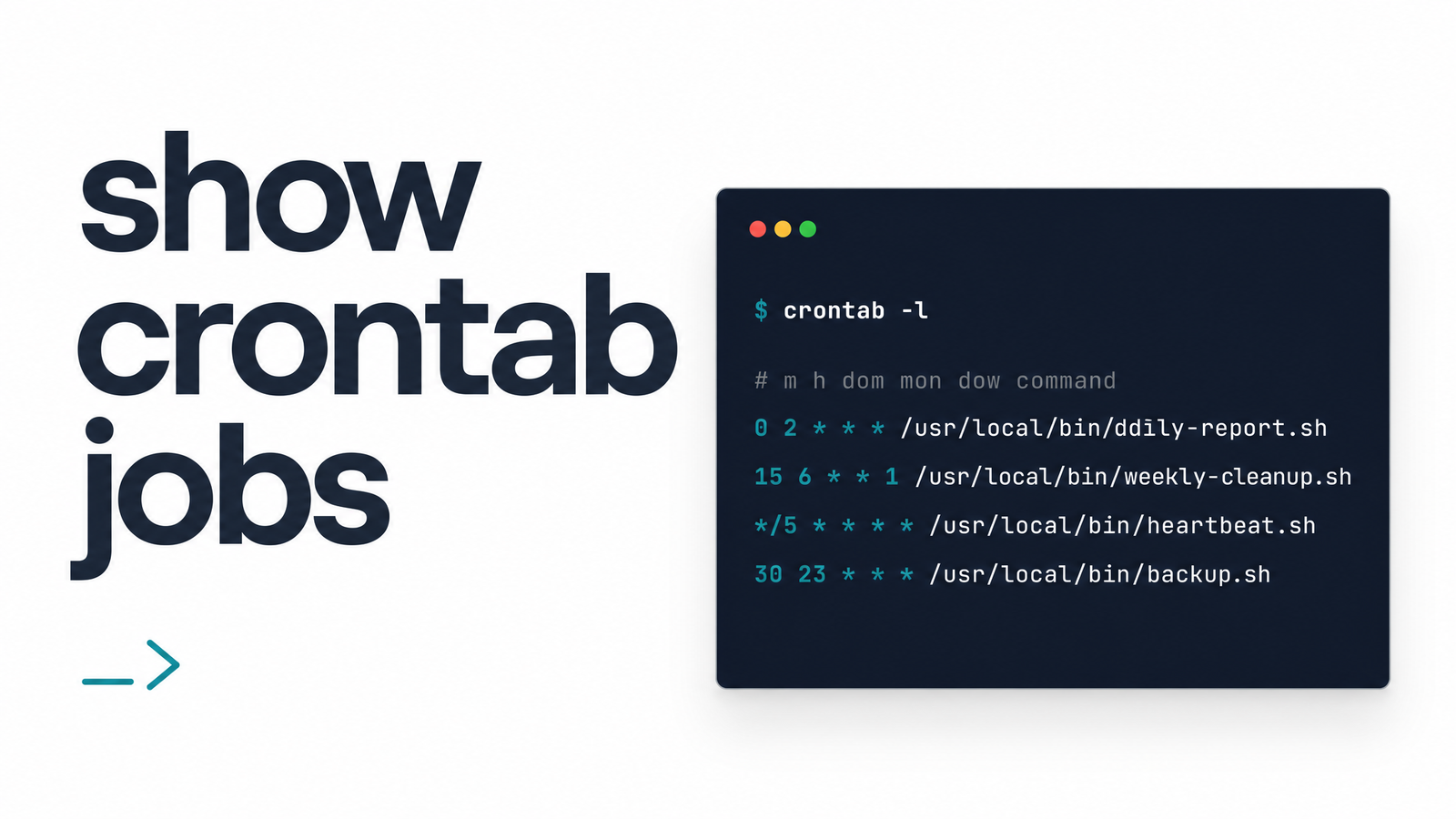
The Quick Answer: crontab -l
To show crontab jobs for the currently logged-in user, run:
crontab -l
This prints your personal crontab to standard output. A typical result looks like this:
0 3 * * * /usr/bin/backup.sh
*/15 * * * * curl -s https://api.example.com/health
Each line is a scheduled job with five time fields (minute, hour, day of month, month, day of week) followed by the command to execute. The second line above translates to "every 15 minutes, run this curl command." This is the fastest way to list cron jobs on any Linux system, and it's almost always the first command developers reach for when checking scheduled cron jobs before debugging something else.
It's worth noting what crontab -l doesn't do: it doesn't edit anything (that's crontab -e), and it doesn't tell you whether any of those jobs ran successfully last night. We'll come back to that gap — it's the whole reason this article exists.
How to Show Crontab Jobs for Another User
Every user account on a Linux system can have its own independent crontab, so the job you're hunting for might not live under your login at all. To view crontab entries for a different user, use the -u flag:
sudo crontab -u username -l
You need sudo (or to already be root) because the system won't let ordinary users read each other's scheduled tasks — crontabs often contain sensitive commands or paths, so this restriction is by design. This is the standard way to show crontab jobs for another user, whether that's a teammate's account or a service account running your application.
The most common real-world case is checking root's crontab, since deployment scripts, backups, and system maintenance tasks are frequently scheduled there:
sudo crontab -u root -l
If you're already logged in as root, drop the -u root and just run crontab -l, since crontab defaults to whichever user is invoking it. Without root or sudo privileges, you're locked out entirely — there's no workaround, and that's intentional.
Common Errors When Listing Crontab Jobs
Three errors account for almost every frustrated search related to listing cron jobs, and each has a specific, boring fix.
"no crontab for user" — This isn't an error in the traditional sense; it's cron telling you, accurately, that this account has never had a crontab created. It doesn't mean your jobs vanished. It usually means one of two things: the jobs were never actually saved (perhaps crontab -e was closed without saving, or edited on the wrong account), or they live somewhere else — under a different user, or in a system-wide location covered in the next section. Before panicking, check /etc/crontab and /etc/cron.d/.
"crontab: command not found" — This means the cron package itself isn't installed, which happens more often than expected on minimal Docker images and stripped-down cloud instances. Install it with your distribution's package manager — apt install cron on Debian/Ubuntu, yum install cronie on RHEL/CentOS — then confirm the cron daemon is running with systemctl status cron (or crond on some distros).
"crontab: permission denied" or "you are not authorized to use cron" — This means your user account is explicitly blocked from using cron, usually via /etc/cron.allow or /etc/cron.deny. An administrator will need to add your username to the allow list, or remove it from the deny list, before crontab -l or crontab -e will work for you.
Beyond crontab -l: System-Wide and App-Specific Cron Locations
Here's where most "show crontab jobs" guides stop short — and where jobs genuinely go missing from view. crontab -l only shows the personal crontab of one user. It says nothing about system-wide cron jobs configured outside any individual user's file.
The main system-wide location is /etc/crontab, a single file readable with cat /etc/crontab (root privileges may be required depending on permissions). Unlike a personal crontab, each line in /etc/crontab includes an extra field specifying which user the command should run as, since this file isn't tied to one account.
Beyond that single file, Linux systems typically use /etc/cron.d/ — a directory holding additional job definitions, often dropped in by installed packages or provisioning scripts. List its contents with ls /etc/cron.d/ and inspect individual files with cat. You'll also find /etc/cron.daily/, /etc/cron.hourly/, /etc/cron.weekly/, and /etc/cron.monthly/ — directories of scripts run automatically on that cadence by the cron daemon, rather than lines with explicit time fields.
So to genuinely check scheduled cron jobs on a server — not just your own — the full checklist is: your user's crontab -l, other relevant users' crontabs via sudo crontab -u, /etc/crontab, and everything in /etc/cron.d/. On systems that have migrated scheduling to systemd timers, also run systemctl list-timers — cron and systemd timers can coexist, and a job you're hunting for might have moved there. If you're setting up new jobs after auditing existing ones, this guide to generating a crontab file the right way walks through safe editing practices, and these real crontab scheduling patterns are a solid reference for the time-field syntax you'll see across all these files.
What crontab -l Can't Tell You
Every command above answers the same question: what's scheduled. None answer the question that actually matters at 3 a.m. when something breaks — did the job run, and did it succeed?
crontab -l shows intent, not outcome. A backup script can sit in your crontab looking perfectly scheduled while silently failing every night for weeks — a bad path, an expired credential, a timeout — and the listing gives you zero indication anything's wrong. Cron doesn't push failures to you by default; it typically only emails output if you've configured mail delivery, and most teams haven't. That's how silent cron failures become the norm rather than the exception, especially for scheduled HTTP jobs hitting internal APIs or webhooks.
This is the actual gap Cronevra fills. Instead of just confirming a schedule exists, Cronevra gives you real cron execution history — every run, every response, every failure — plus recovery alerts the moment a job stops behaving as expected. You get the visibility crontab was never designed to provide: proper cron job monitoring on top of the scheduling you already have.
Once you can list your jobs confidently, the next problem is knowing whether they're actually working. Try Cronevra to get execution history and failure alerts for your scheduled HTTP jobs, or check pricing to see which plan fits your team.
Frequently Asked Questions
How do I show all crontab jobs on Linux?
Run crontab -l to list the current user's personal crontab. To see everything across the whole system, also check another user's crontab with sudo crontab -u username -l, read /etc/crontab directly, and list files in /etc/cron.d/ — personal crontabs and system-wide locations are separate and none of them show the others' jobs.
Why does crontab -l say 'no crontab for user'?
It means that specific user account has no crontab file created yet — cron is reporting accurately, not throwing a bug. The jobs you're looking for may exist under a different user account, in /etc/crontab, or in /etc/cron.d/, so check those before assuming anything was lost.
Can I see another user's crontab without root access?
No. Viewing another user's crontab requires root privileges or sudo access, using sudo crontab -u username -l. Regular users are blocked from reading each other's crontabs by design, since these files can contain sensitive paths and commands.
How do I list cron jobs that aren't in my personal crontab?
Check /etc/crontab with cat /etc/crontab, then list /etc/cron.d/ with ls /etc/cron.d/ and inspect each file inside it. Also check /etc/cron.daily/, /etc/cron.hourly/, /etc/cron.weekly/, and /etc/cron.monthly/ for scripts run on those schedules, and run systemctl list-timers if the system uses systemd timers alongside cron.
Does crontab -l show disabled or commented-out jobs?
Yes, crontab -l prints the raw file contents, including lines starting with #, which cron treats as comments and never executes. These commented lines are effectively disabled jobs still visible in the output, so don't assume every line you see is actively running.
How can I tell if a job listed in crontab -l actually ran successfully?
crontab -l only confirms a schedule exists — it never confirms execution or success. To know whether a job actually ran and completed correctly, you need execution history and failure alerting, which is exactly what a monitoring tool like Cronevra provides for scheduled HTTP jobs.