Scheduling Jobs in Crontab: The Complete Walkthrough
August 20, 2026
What It Means to Schedule a Job in Crontab
Crontab is the configuration file that tells the cron daemon — crond, the background process shipped with virtually every Linux and Unix system — when to run a command. Scheduling jobs in crontab means writing one line per task, in a format cron understands, and letting crond check every minute whether anything is due. Mechanically that's trivial. What trips people up is the details: which crontab file to touch, how to write a schedule expression that fires when you actually think it will, and how to confirm the job registered at all. This is a practical walkthrough of that process, from opening the file to watching the first run, and into the part most crontab guides skip: knowing whether the job succeeded.
The Five Fields Cron Needs to Understand a Schedule
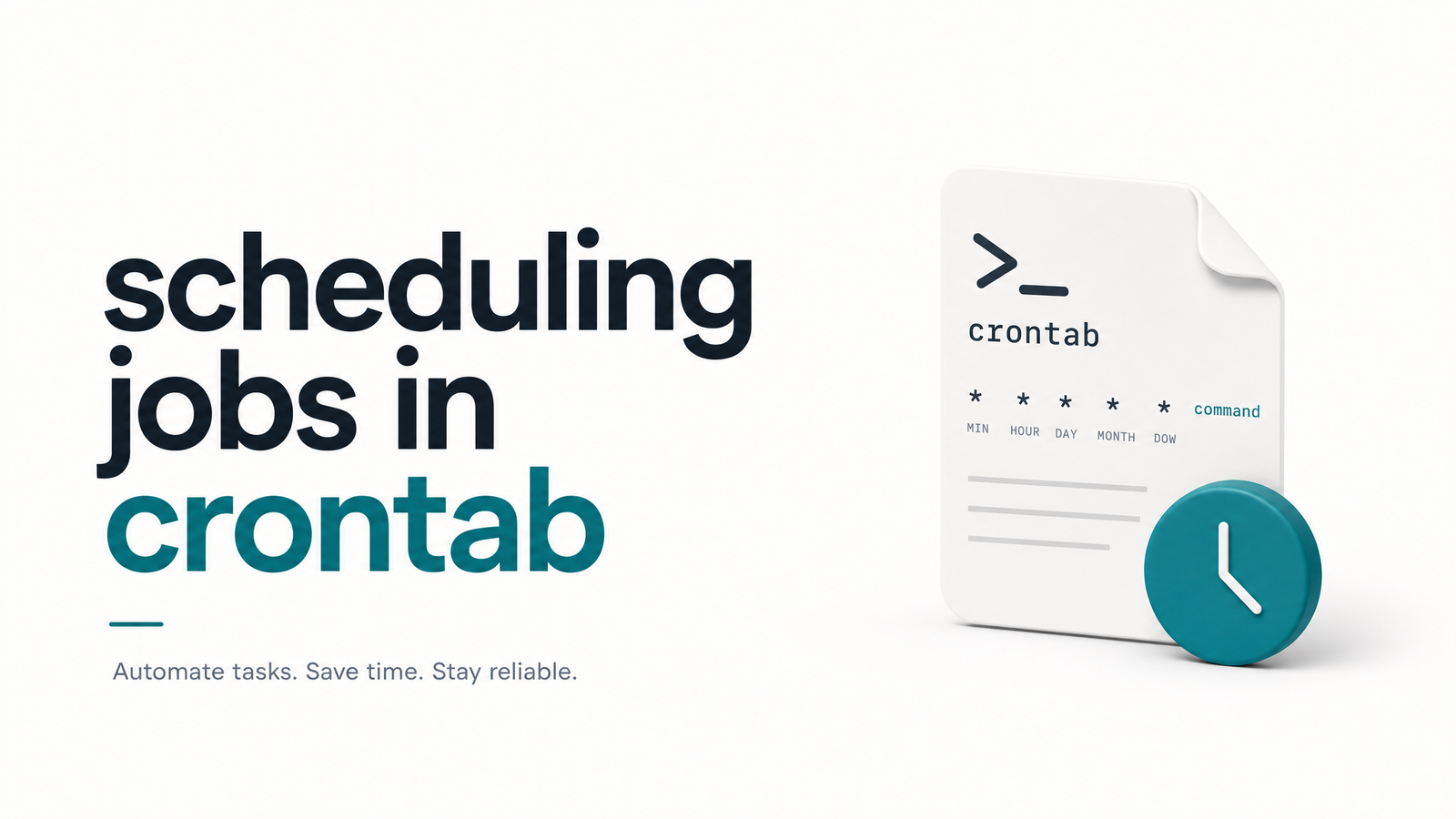
Every crontab line follows the same crontab syntax: five time fields followed by the command to run.
minute hour day-of-month month day-of-week command
- Minute — 0 to 59
- Hour — 0 to 23
- Day of month — 1 to 31
- Month — 1 to 12
- Day of week — 0 to 6 (Sunday to Saturday)
Each cron field accepts a specific number, a wildcard (* for "any value"), a range (1-5), a list (1,15,30), or a step (*/10). Get the order wrong and your cron schedule expression will either fail to parse or silently run at the wrong time. For the full symbol reference, including less common combinations, see the crontab cheatsheet with copy-paste schedules and syntax table.
Step 1: Open the Right Crontab
The most common early mistake in scheduling jobs in crontab isn't a syntax error — it's editing the wrong file. There are three distinct places a cron entry can live:
- User crontab — edited with
crontab -e, runs as the currently logged-in user, and is the right choice for almost anything you personally need scheduled. - System crontab —
/etc/crontab, which includes an extra "user" field between the five time fields and the command, since it can run jobs as any user. - cron.d fragments — individual files dropped into
/etc/cron.d/, commonly used by packages and system services, following the same format as/etc/crontab.
If you run crontab -e and don't see a job you expect, you may be looking in the wrong scope — a job saved under sudo crontab -e (root's crontab) won't appear in your own user crontab, and vice versa. For a closer look at crontab -e plus GUI and CLI alternatives, see Cron Editor Explained.
Step 2: Write and Test the Schedule Expression
Say you need a backup script to run every night at 2am:
0 2 * * * /home/user/scripts/backup.sh
Minute 0, hour 2, and wildcards for day, month, and weekday — the job fires at exactly 02:00 daily. Read it left to right: "at minute 0 of hour 2, every day, every month, every weekday." If the expression is more complex — say, every 15 minutes on weekdays only — build it incrementally and re-read it aloud before saving. Mentally parsing your own schedule catches inverted fields (writing the day where the month goes is a classic) before they cost you a missed run.
Step 3: Save and Confirm Cron Picked It Up
When you save and exit from crontab -e, most cron implementations validate syntax on save and reject the file outright if a line is malformed, giving you a chance to re-edit rather than a silently broken crontab. That's a useful safety net, but it only catches malformed syntax, not logical mistakes like the wrong hour.
Once saved, confirm the job registered by running crontab -l, which lists every entry in the current crontab. If your job is there, cron has it. If you're managing jobs across multiple users, containers, or a mix of user and system crontabs, listing them one at a time gets tedious fast — this guide to listing cron tasks across every user, system, Docker, and Kubernetes context covers that more thoroughly.
Step 4: Watch the First Few Runs
The first handful of executions matter most, because this is when PATH and environment problems show up. A script that runs perfectly when typed manually in your shell can fail silently under cron, since cron runs with a minimal environment and a stripped-down PATH. Commands you assume are globally available (node, python3, custom binaries in ~/bin) may not resolve at all. Watch the first few runs closely, check for output, and confirm files or database rows actually changed as expected — don't assume no error means success.
Common Mistakes That Break a Scheduled Job
Most "crontab not running" reports trace back to a short list of repeat offenders:
- Missing PATH or environment variables — cron doesn't load your shell's profile, so anything set in
.bashrcor.profileisn't available. Use absolute paths to binaries, or explicitly setPATHat the top of the crontab. - Relative paths in scripts — a script that reads
./config.jsonworks fine from your terminal but fails under cron, which runs from a different working directory. - No output redirection — without redirecting stdout/stderr to a log file, a failing job leaves no trace at all, making cron job troubleshooting far harder after the fact.
- Editing the wrong crontab — see Step 1; it's easy to forget which scope a job lives in weeks later.
- DST and timezone assumptions — cron generally runs on the system's local time, and clock shifts around daylight saving changes can shift or double-run jobs scheduled near the transition.
Redirecting output (>> /var/log/mycron.log 2>&1) at the end of the command turns most of these from invisible failures into diagnosable ones.
Scheduling Is Not the Same as Knowing It Ran
Here's the part no cheat sheet mentions: crontab has no concept of success or failure. It fires the command at the scheduled time and moves on — it doesn't check the exit code, doesn't retry, and doesn't tell you anything went wrong. The only built-in signal is MAILTO, which can email a user cron's own output, but it depends on a working mail transfer agent, produces noisy or empty emails, and offers no retries, escalation, or history. Details on its syntax and limits are covered in Cron MAILTO Explained.
That gap is exactly how silent cron failures happen: a script starts erroring out after a dependency changes, nobody notices for weeks, and the first sign of trouble is a missing backup or a stale report. Cron monitoring exists to close that gap — pinging a service on job start and completion so failures, timeouts, and missed runs trigger real cron job alerting instead of silence.
Cronevra is built for exactly that layer: it tracks every scheduled job's execution history, flags failures and missed runs, and alerts you before a silent failure turns into a real outage. If you've just finished scheduling jobs in crontab and want to actually know whether they ran, check the Cronevra pricing page to see which plan fits your setup.
Frequently Asked Questions
How do I add a job to crontab?
Run crontab -e to open your user crontab in the default editor, add a line with five schedule fields followed by the command, then save and exit. Most systems validate the syntax on save and will reject a malformed line before it's written.
What order do the five crontab fields go in?
The order is minute, hour, day of month, month, and day of week, followed by the command to run. Getting this order wrong is the most common reason a job runs at the wrong time instead of failing outright.
Why isn't my cron job running even though the syntax looks right?
The most likely cause is an environment issue rather than a scheduling one — cron runs with a minimal PATH and doesn't load your shell profile, so commands and relative file paths that work manually can fail silently. Using absolute paths and explicitly setting PATH in the crontab usually resolves it.
How can I check if a cron job actually executed?
Redirect the job's output to a log file (>> /var/log/job.log 2>&1) so you can inspect results after each run, and check crontab -l to confirm the entry is registered. For ongoing visibility without manually checking logs, a monitoring layer like Cronevra tracks execution history and flags missed or failed runs automatically.
Do I need to restart cron after editing crontab?
No. The cron daemon automatically detects changes made through crontab -e and picks up new or edited jobs without a restart. This applies to user crontabs; changes to /etc/crontab or files in cron.d are also picked up automatically on most systems.
What's the difference between crontab -e and editing /etc/crontab directly?
crontab -e edits a per-user crontab that always runs as that user and uses the standard five-field format. /etc/crontab is the system-wide crontab, edited directly as root, and includes an extra field specifying which user each job should run as.