Schedule a Job in Crontab: A Fast 4-Step Tutorial
August 28, 2026
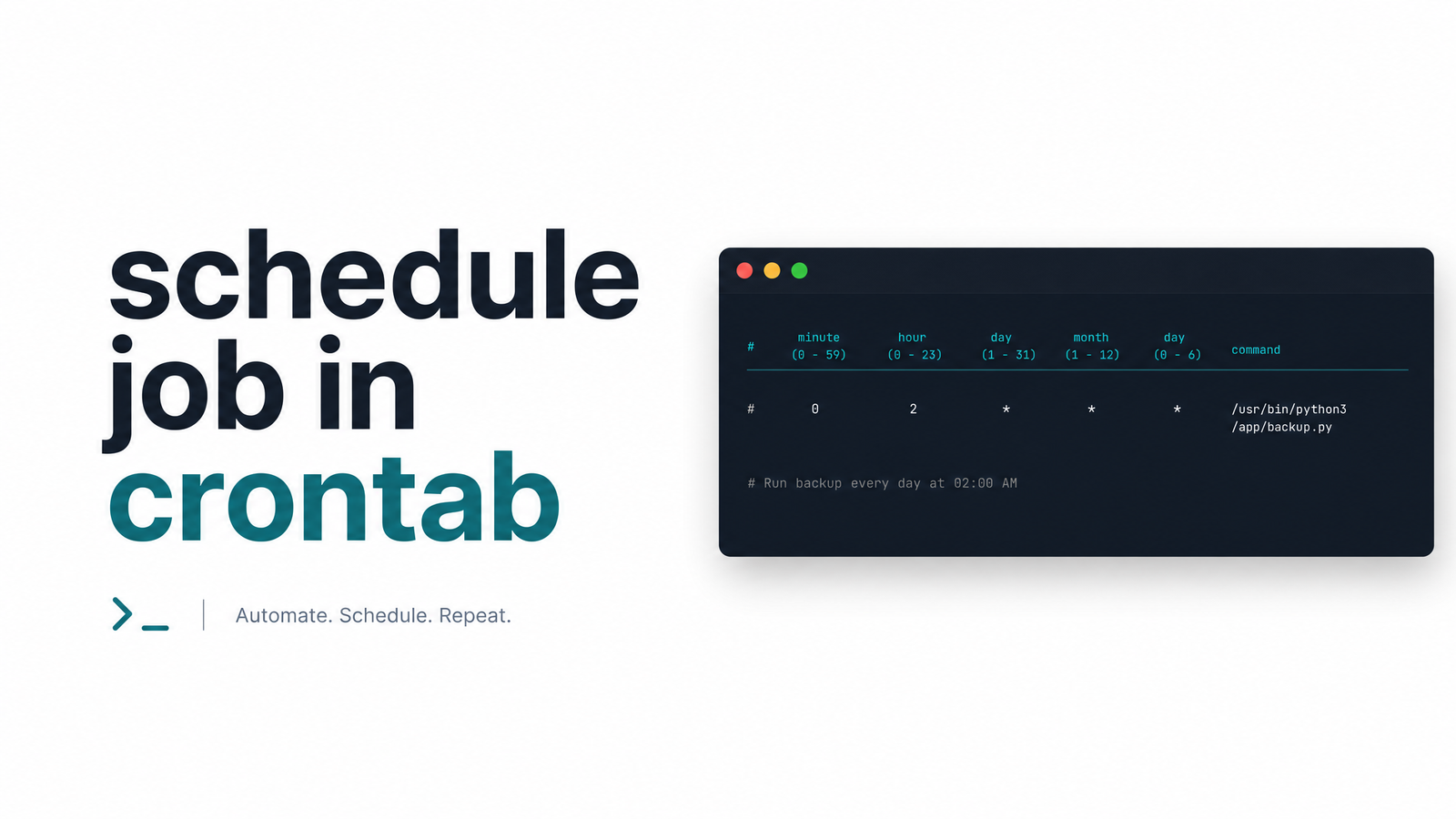
Scheduling a job in crontab takes four steps: open your crontab file, write a schedule line, save it, and verify it actually ran. No need to memorize a syntax manual to get a task running on a Linux server tonight.
This guide walks through each step with copy-paste examples, then shows you the one thing crontab can't do for you: tell you when a job quietly stops working weeks from now.
Schedule a Job in Crontab in 4 Steps
- Run
crontab -eto open your personal crontab file in an editor. - Add a line with five time fields plus the command you want to run.
- Save the file — crontab installs the job automatically.
- Confirm it's listed with
crontab -l, then check logs later to confirm it actually fired.
The rest of this article fills in the specifics so you don't get the field order wrong or discover three weeks from now that the job silently died.
Step 1: Open Your Crontab File
Run this command:
crontab -e
The first time you run it, most systems prompt you to pick an editor (nano is the friendliest default if you're unsure). After that, crontab -e always opens the same file — your personal, per-user crontab — without asking again.
This differs from /etc/crontab, a system-wide file that requires root access and includes an extra "user" field to specify who runs each command. For almost everything a developer needs — scheduling a script, a health check, a backup — crontab -e under your own user account is the right tool. It's managed entirely by the cron daemon (traditionally vixie cron on most Linux distributions), which reads your crontab and triggers commands at the right time without you needing to keep a terminal open.
Step 2: Write the Schedule Line
Every crontab schedule line follows the same five-field order, followed by the command to run:
minute hour day month weekday command
- minute: 0–59
- hour: 0–23
- day: 1–31 (day of month)
- month: 1–12
- weekday: 0–6 (Sunday to Saturday)
A single asterisk (*) in any field means "every value." So this line:
0 9 * * * /home/user/scripts/backup.sh
runs backup.sh at 9:00 AM, every day, every month, regardless of weekday. Getting the field order wrong — putting hour before minute, for instance — is the single most common reason a cron job schedule doesn't behave as expected. For the full breakdown of ranges, steps, and lists in each field, the cronjob deep-dive covers the complete syntax and the reasons jobs fail beyond scheduling mistakes.
Common Schedule Examples You Can Copy-Paste
These cover the schedules developers reach for most often:
| Schedule | Line |
|---|---|
| Every minute | * * * * * /path/to/script.sh |
| Every 5 minutes | */5 * * * * /path/to/script.sh |
| Every hour, on the hour | 0 * * * * /path/to/script.sh |
| Daily at 2:30 AM | 30 2 * * * /path/to/script.sh |
| Weekdays only, at 8 AM | 0 8 * * 1-5 /path/to/script.sh |
Cron also supports special strings that replace the five fields entirely, useful shorthand for common cases:
@daily /path/to/script.sh— runs once a day at midnight, equivalent to0 0 * * *@hourly /path/to/script.sh— runs once an hour@reboot /path/to/script.sh— runs once, right after the system boots
@daily and @hourly are readable substitutes when you don't need a precise time. @reboot is handy for startup scripts but depends on the cron daemon coming up correctly on boot, which isn't guaranteed on every system configuration.
Step 3: Save and Confirm It's Installed
When you save and exit the editor (:wq in vim, Ctrl+O then Ctrl+X in nano), crontab validates the file and installs it immediately — there's no separate "activate" step. If the file has a syntax error, most versions of cron will refuse to save it and reopen the editor with the error shown.
To confirm the job is actually there, list your current cron jobs:
crontab -l
This prints every line in your active crontab. If your new schedule line appears exactly as you wrote it, it's installed and the cron daemon will pick it up on its next check — typically every minute. If you don't see it, you likely edited the wrong crontab (check whether you're running as the expected user) or the save didn't go through.
Step 4: Verify the Job Actually Runs
Being listed in crontab -l only proves the job is scheduled — not that it ran. To confirm execution, check the system log for cron activity:
grep CRON /var/log/syslog
(On some distributions this lives at /var/log/cron instead.) You should see an entry with your command at the scheduled time. If your script writes its own log file, tail that instead — it's the fastest way to confirm output, not just that cron attempted the run.
One frequent surprise at this stage: cron jobs that produce output but have no mail transfer agent configured. If you see errors about mail delivery instead of your expected output, see this fix for the "no MTA installed" error. If you'd rather manage schedules visually instead of hand-editing files, this comparison of the crontab editor versus a monitoring dashboard is worth a look.
What Crontab Won't Tell You After That
Here's the gap nobody mentions in the standard tutorial: once your job is scheduled and confirmed working today, crontab has no mechanism to tell you if it stops working tomorrow. There's no built-in alerting, no dashboard, no notification when a job that ran successfully for three weeks suddenly starts throwing errors, hangs indefinitely, or simply stops firing because a dependency changed or a server got restarted with a different environment.
That's cron job monitoring's entire reason to exist — a job that fails silently is functionally the same as a job that never ran, except it's worse, because everyone assumes it's still working. crontab -l and a syslog grep are fine for verifying setup today; they won't catch a failure that happens next month while you're not looking.
Once a job is scheduled, Cronevra watches its execution history and alerts you the moment it misses a run, times out, or fails — so you find out from a notification instead of from a downstream problem days later. Check the pricing page if you're ready to stop relying on manual log checks to know your scheduled jobs are still alive.
Frequently Asked Questions
How do I schedule a job in crontab on Linux?
Run crontab -e to open your personal crontab file, add a line with five time fields (minute, hour, day, month, weekday) followed by the command, then save. Cron installs the job automatically on save — there's no separate activation step.
What is the crontab command to edit my schedule?
crontab -e opens your user crontab in your default editor, prompting you to choose one the first time you run it. This is separate from /etc/crontab, which is system-wide and requires root access.
How do I schedule a job to run every day at a specific time?
Use minute hour * * * followed by your command — for example, 30 2 * * * /path/to/script.sh runs at 2:30 AM daily. Alternatively, @daily runs a job once a day at midnight without specifying an exact time.
Why isn't my scheduled crontab job running?
The most common causes are an incorrect field order, a missing full path to the script or interpreter, or environment variables that exist in your shell but not in cron's minimal environment. Check grep CRON /var/log/syslog to confirm cron attempted the run, and verify the script itself using its own log output.
How do I list all my current cron jobs?
Run crontab -l to print every scheduled line in your active crontab exactly as it's stored. If your job doesn't appear, you likely edited the wrong user's crontab or the save didn't complete.
Can I schedule a cron job without using crontab -e?
Yes — you can edit /etc/crontab or files in /etc/cron.d/ directly, which is common for system-level jobs and includes an extra field specifying which user runs the command. Some teams also use a GUI or monitoring dashboard instead of hand-editing files, which is covered in the crontab editor versus monitoring dashboard comparison.