How to View a Cron Log: Linux, Docker & Kubernetes
September 25, 2026
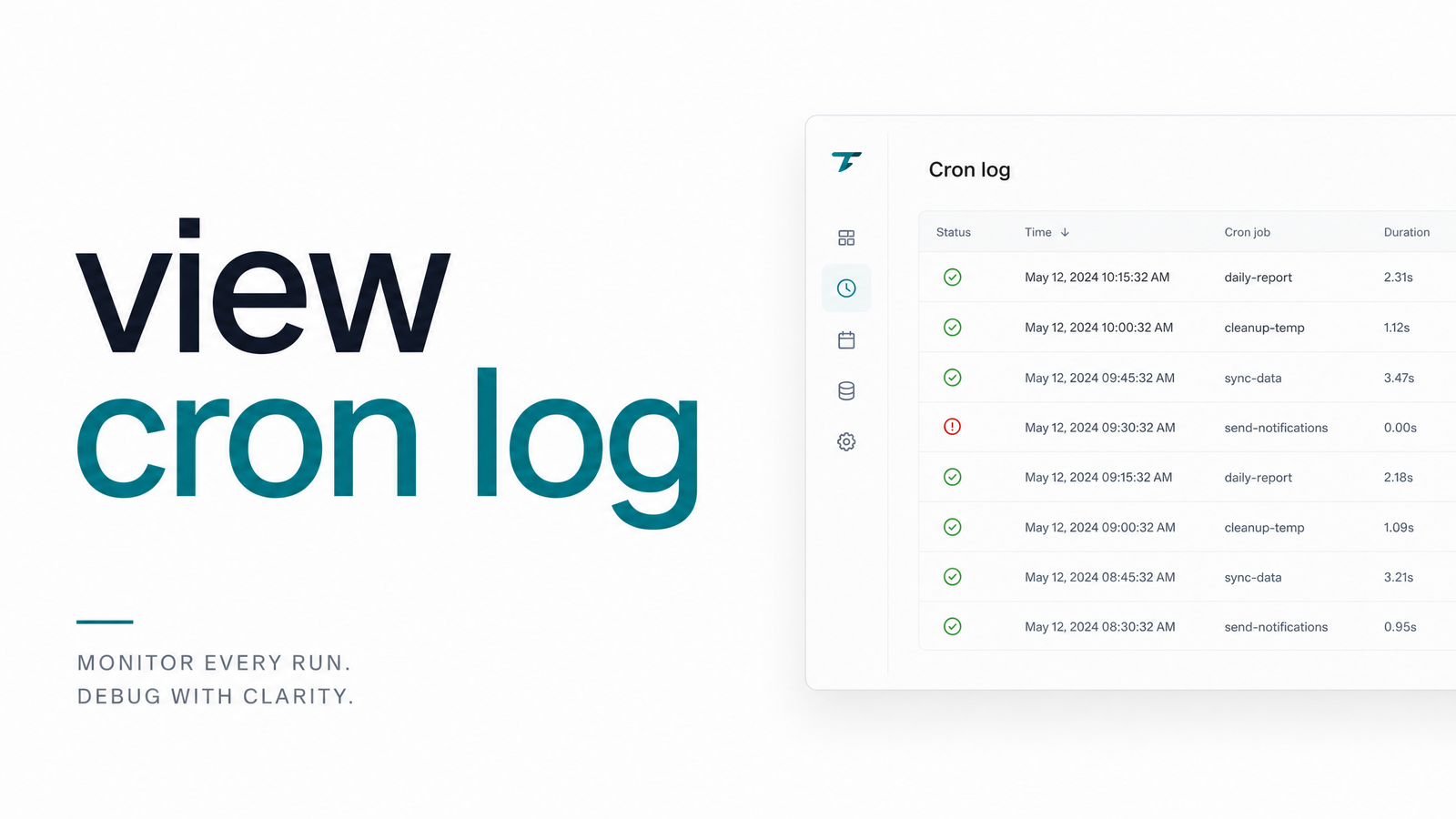
Every developer eventually needs to view a cron log, usually while chasing down a job that didn't do what it was supposed to. The right command depends on where your cron job actually runs — a bare-metal Linux box, a systemd-managed distro, a Docker container, or a Kubernetes CronJob. Below is the fast answer for each environment, followed by the one limitation no log file can fix.
The Quick Answer: View a Cron Log in One Command
On a classic Linux server using sysvinit or rsyslog, the fastest way to check cron log activity is:
grep CRON /var/log/syslog
On RHEL-based systems, the cron log is usually a dedicated file instead:
cat /var/log/cron
Both commands work because cron has traditionally logged every job invocation — start time, exit status, and command run — to a system-wide log via syslog. To view entries for just one job, pipe either command through grep for the job's name or script path. This setup assumes rsyslog is installed and configured to capture the cron facility, true for most Ubuntu, Debian, and CentOS installs but not universal. For exact paths per distribution, see Cron Logs in Linux: Where to Find Them by Distro.
Viewing Cron Logs on systemd-Based Systems
Modern distributions increasingly route cron output through systemd and journald rather than a flat syslog file, which changes how you check cron log entries. Instead of grepping a file, use:
journalctl -u cron
or, on some distros, journalctl -u crond. Add -f to follow new entries live, or --since "1 hour ago" to narrow the window. This journalctl cron approach returns the same underlying information — job start, completion, and errors — but stored in the structured, indexed journal rather than plain text. The practical upshot for anyone troubleshooting cron log linux issues: check /etc/os-release or run systemctl status cron first to confirm whether you're dealing with journald or classic syslog, since using the wrong command wastes time. For filtering and real-time tailing once you've found the right source, see Check Cron Logs: Commands, Filters & Real-Time Views.
Viewing Cron Logs Inside Docker Containers
Cron in a container introduces a scenario the traditional commands don't cover. If cron runs as PID 1 or alongside your app inside a container, start with:
docker logs
This only shows output if the container's cron process (or a wrapper script) writes to stdout/stderr — the single biggest pitfall with docker cron logs. Cron's default behavior is to log to syslog or a file inside the container's filesystem, invisible to Docker's logging driver. If docker logs comes back empty, exec into the container and check the log file directly:
docker exec -it tail -f /var/log/cron.log
If nothing exists there either, check the crontab entry itself — a common cron in docker container mistake is omitting a redirect, meaning output silently goes to /dev/null by default in minimal images. The fix is usually to explicitly redirect job output to stdout (>> /proc/1/fd/1) so Docker's log driver actually captures it.
Viewing Kubernetes CronJob Logs
Kubernetes adds another layer: each scheduled run creates a new Job, which creates a new Pod, and logs live with that pod rather than a persistent file. To view kubernetes cronjob logs, first find the most recent pod:
kubectl get pods --selector=job-name=
Then pull its logs:
kubectl logs
If the pod has already been cleaned up by Kubernetes' garbage collection, its logs are gone unless you're shipping them to an external aggregator (e.g., Loki, CloudWatch, or an ELK stack). This is why teams running CronJobs at scale rarely rely on kubectl logs cronjob lookups as their primary monitoring method — it works for a quick manual check right after a run, but it's not a durable audit trail once pods rotate out.
When the Cron Log Shows Nothing At All
Here's the limitation that applies across every environment above: an empty or missing entry in a cron log is indistinguishable from a job that simply never ran. If the scheduler daemon crashed, the container never started, the CronJob's schedule was misconfigured, or the host was down at execution time, there's no log line to grep — because nothing ever executed to produce one.
A cron log can also appear empty for reasons unrelated to the job failing outright. If MAILTO is unset or misconfigured, error output that would normally be emailed instead gets dropped. If a script redirects its own output to /dev/null, or the job's stdout was never wired up correctly in a Docker or Kubernetes context, you get a textbook silent cron failure — the job might have run and failed internally, but the log shows nothing because the process never wrote anything logging could catch. A cron log empty of errors is not the same as a job that succeeded.
This is the core problem with log-viewing as a monitoring strategy: it's entirely reactive. You only find out something's wrong when you go looking — and if a job's failure mode is silence rather than an error message, you might not go looking until a downstream system breaks. For a deeper look at exactly what logs miss and why, see Cron Job Logs: Where to Find Them and What They Miss.
The fix is to flip the model from pull to push. Instead of checking logs after the fact, a monitored job pings an endpoint on every successful run; if that ping doesn't arrive on schedule, you get alerted immediately — no grepping required. That's the mechanism behind Health Check Ping: The Mechanics of Push-Based Job monitoring, and it closes exactly the gap that log files leave open.
Manually viewing cron logs will always have a place for quick, one-off debugging. But if your team is relying on it as the primary way to know whether scheduled jobs are healthy, you're finding out about failures only when someone notices something's broken downstream. Cronevra pings and alerts the moment a scheduled job fails to check in, so failures surface in seconds instead of during a log review. Compare plans on the Cronevra pricing page if you're ready to stop discovering failures by grepping logs.
Frequently Asked Questions
Why is my cron log file empty even though the job is scheduled?
An empty log usually means one of three things: the cron daemon or container never actually executed the job, MAILTO is unset so error output isn't captured, or the job's own output is being redirected to /dev/null. A scheduling misconfiguration — wrong syntax, wrong timezone, or a disabled cron service — will also produce zero log entries with no error to point to.
Where does cron store its logs on Ubuntu vs. CentOS?
Ubuntu typically logs cron activity to /var/log/syslog, filterable with grep CRON, while CentOS and other RHEL-based distros usually write to a dedicated /var/log/cron file. Some newer installs of either route through journald instead, so checking systemctl status cron first confirms which source applies.
How do I view cron logs for a specific user's crontab?
Filter the system log by username rather than job name, since cron logs which user account triggered each run — for example grep CRON /var/log/syslog | grep username. On journald systems, combine journalctl -u cron with grep the same way, since journalctl doesn't filter by cron user natively.
Can I view cron logs in real time as jobs run?
Yes — use tail -f /var/log/syslog or tail -f /var/log/cron on classic systems, or journalctl -u cron -f on systemd hosts, to watch entries appear live. This is useful for confirming a job fires at its scheduled time, though it still requires you to be watching when it happens.
Does Kubernetes keep CronJob logs after the pod finishes?
Not by default — once a completed pod is garbage collected, its logs disappear unless you're forwarding them to an external log aggregator. kubectl logs only works while the pod object still exists, making it a poor fit for long-term audit history without additional log shipping infrastructure.
What's the difference between a cron log and job output redirected to a file?
A cron log records that a job ran and its exit status, generated by the cron daemon itself. Redirected output (e.g., >> /var/log/myjob.log in the crontab entry) is the job's own stdout/stderr, captured separately — a job can appear in the cron log as "ran successfully" while its own output file reveals an internal error the daemon never sees.