Example of Crontab: 10 Real Patterns Developers Actually Use
August 14, 2026
Most crontab example pages dump fifty rows on you and call it a reference. You need the handful of patterns that cover nearly every real scheduling job, a clear syntax breakdown, and a way to confirm the job actually ran. That's what this page gives you — then it points out the one gap every crontab example shares, regardless of correct syntax.
The 5-Field Crontab Format in 30 Seconds
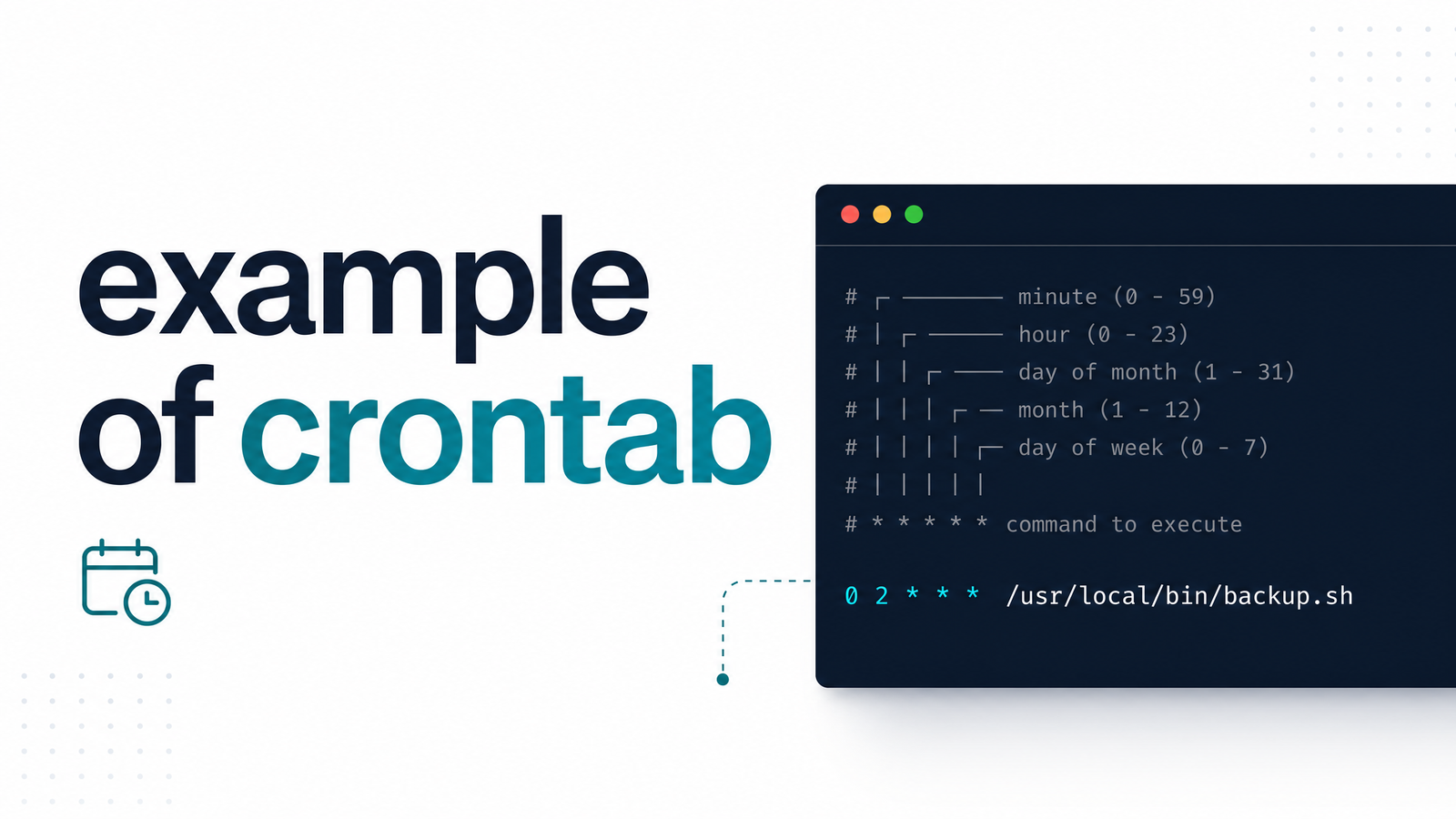
Every crontab entry follows the same five-field syntax, followed by the command to execute:
*     *     *     *     *   command-to-run
│     │     │     │     │
│     │     │     │     └── day of week (0–6, Sunday=0)
│     │     │     └──────── month (1–12)
│     │     └────────────── day of month (1–31)
│     └──────────────────── hour (0–23)
└────────────────────────── minute (0–59)
Each field accepts a specific value, an asterisk (any value), or the comma/range/step combinations covered below. Once you're comfortable with this format, generating a working entry is mostly filling in the right numbers — for the full walkthrough, see How to Generate a Crontab File the Right Way. Entries live in your user crontab (edited with crontab -e), in /var/spool/cron, or system-wide in /etc/crontab, and the cron daemon reads them on a fixed interval to decide what fires next.
10 Crontab Examples You'll Actually Use
These cover the four intents nearly every developer needs: running often, running once a day, running on a recurring schedule, and running at startup.
Run frequently
*/5 * * * * /path/to/script.sh— every 5 minutes; ideal for polling jobs or lightweight health checks.*/15 * * * * /path/to/script.sh— every 15 minutes, a common cadence for queue processing.0 * * * * /path/to/script.sh— top of every hour, equivalent to@hourly.
Run once daily
4. 0 0 * * * /path/to/backup.sh — every day at midnight, the classic nightly backup slot.
5. 30 2 * * * /path/to/cleanup.sh — 2:30 AM daily, useful for maintenance jobs you want off-peak.
Run on a recurring schedule
6. 0 9 * * 1-5 /path/to/report.sh — 9 AM, Monday through Friday, a typical business-hours reporting job.
7. 0 0 * * 0 /path/to/weekly-report.sh — midnight every Sunday, a weekly rollup.
8. 0 0 1 * * /path/to/invoice.sh — midnight on the 1st of each month, common for billing jobs.
9. 0 */4 * * * /path/to/sync.sh — every four hours; see Cron Every 4 Hours: Exact Syntax, Variations & Pitfalls for more.
Run at startup
10. @reboot /path/to/startup-script.sh — fires once when the system boots, useful for re-registering services or warming caches.
If your job runs a Node.js script rather than a shell script, the command syntax has a few gotchas — see Crontab Node.js: Correct Syntax and Fixing Silent Failures.
Special Strings: @daily, @hourly, @reboot and the Rest
Cron supports shorthand special strings that expand to fixed schedules, as documented in the crontab(5) manual page:
@yearly(or@annually) →0 0 1 1 *@monthly→0 0 1 * *@weekly→0 0 * * 0@daily(or@midnight) →0 0 * * *@hourly→0 * * * *@reboot→ runs once at startup, no five-field equivalent
@daily is just cleaner shorthand for 0 0 * * * — same result, easier to read at a glance. These strings trade flexibility for readability, so reserve them for the simplest, most common schedules.
Combining Values: Commas, Ranges, and Steps
Real schedules rarely fit a single number, so cron lets you combine values inside each field:
- Comma-separated list:
0 9,13,17 * * * /path/to/script.shruns at 9 AM, 1 PM, and 5 PM — three fixed times in one line. - Range:
0 9 * * 1-5 /path/to/script.shrestricts execution to Monday through Friday using a range instead of listing five separate weekday numbers. - Step values:
*/10 * * * * /path/to/script.shruns every 10 minutes —*/ndivides the field's full range into equal intervals.
One edge case worth knowing: when both day-of-month and day-of-week are restricted (not left as *), most cron implementations treat them as an OR, not an AND — confirmed in the Ubuntu crontab manpage. It trips up a lot of "run on the 1st if it's a Monday" logic.
Checking Your Crontab Example Actually Works
Before trusting any new entry in production, confirm it's registered and firing. Run crontab -l to list every job scheduled for the active user — a quick check that your edit saved and there's no typo. The cron daemon also logs execution attempts, and checking that log is the fastest way to verify a job ran when expected. For a full walkthrough of where that log lives and how to read it, see Crontab Log: Where to Find It and How to Read It. To sanity-check syntax before deploying, tools like crontab.guru translate the five fields into plain English so you can catch mistakes before they hit a server.
The Blind Spot Every Crontab Example Shares
Here's what none of the ten entries above tell you: a job firing on schedule and a job succeeding are two different things. Cron will happily run a broken script at 2:30 AM every night, log nothing useful, and never tell a soul. Standard output and error streams get silently discarded unless you explicitly redirect them, so a crontab silent failure can persist for weeks before anyone notices a missing backup or a stale report.
That's the gap cron job monitoring exists to close. Cronevra watches the jobs behind these exact schedules — every-5-minutes polls, nightly backups, @reboot startup scripts — and sends cron job alerting the moment a run fails or simply doesn't check in. Instead of grepping logs after the damage is done, you get notified while it's still fixable. If your scheduled jobs matter enough to write a crontab example for, they matter enough to know when one breaks — see Cronevra or check Pricing to get monitoring on these jobs today.
Frequently Asked Questions
What does a basic crontab example look like?
A basic entry has five time fields followed by a command, like 0 0 * * * /path/to/script.sh, which runs the script every day at midnight. The fields represent minute, hour, day of month, month, and day of week, with an asterisk meaning "any value."
How do I write a crontab example that runs every 5 minutes?
Use */5 * * * * /path/to/script.sh. The */5 step in the minute field tells cron to fire every 5 minutes, all day, every day.
What's the difference between * * * * * and @daily in crontab?
* * * * * runs a job every minute of every day, while @daily is shorthand for 0 0 * * *, running once at midnight. They're not interchangeable — @daily is a fixed daily shortcut, not a wildcard for "every minute."
Can I test a crontab example before adding it to my server?
Yes — tools like crontab.guru let you paste the five-field syntax and see a plain-English translation of when it will run, catching mistakes before deployment. After adding it, crontab -l confirms it saved correctly, and checking the cron log confirms it actually executed.
Why didn't my crontab example run at the time I scheduled?
Common causes include incorrect field order, a missing newline at the end of the crontab file, environment variables not being available to cron's minimal shell, or the day-of-month/day-of-week fields interacting as an OR rather than an AND. Checking the cron log is the fastest way to see whether cron attempted the job at all.
How do I see all the crontab examples currently scheduled on my server?
Run crontab -l to list every entry in the current user's crontab. For system-wide jobs, check /etc/crontab and the files under /etc/cron.d/, since those aren't shown by crontab -l.