Crontab View Jobs: How to See Cron Tasks in Any Context
August 16, 2026
The Fast Answer: How to View Crontab Jobs
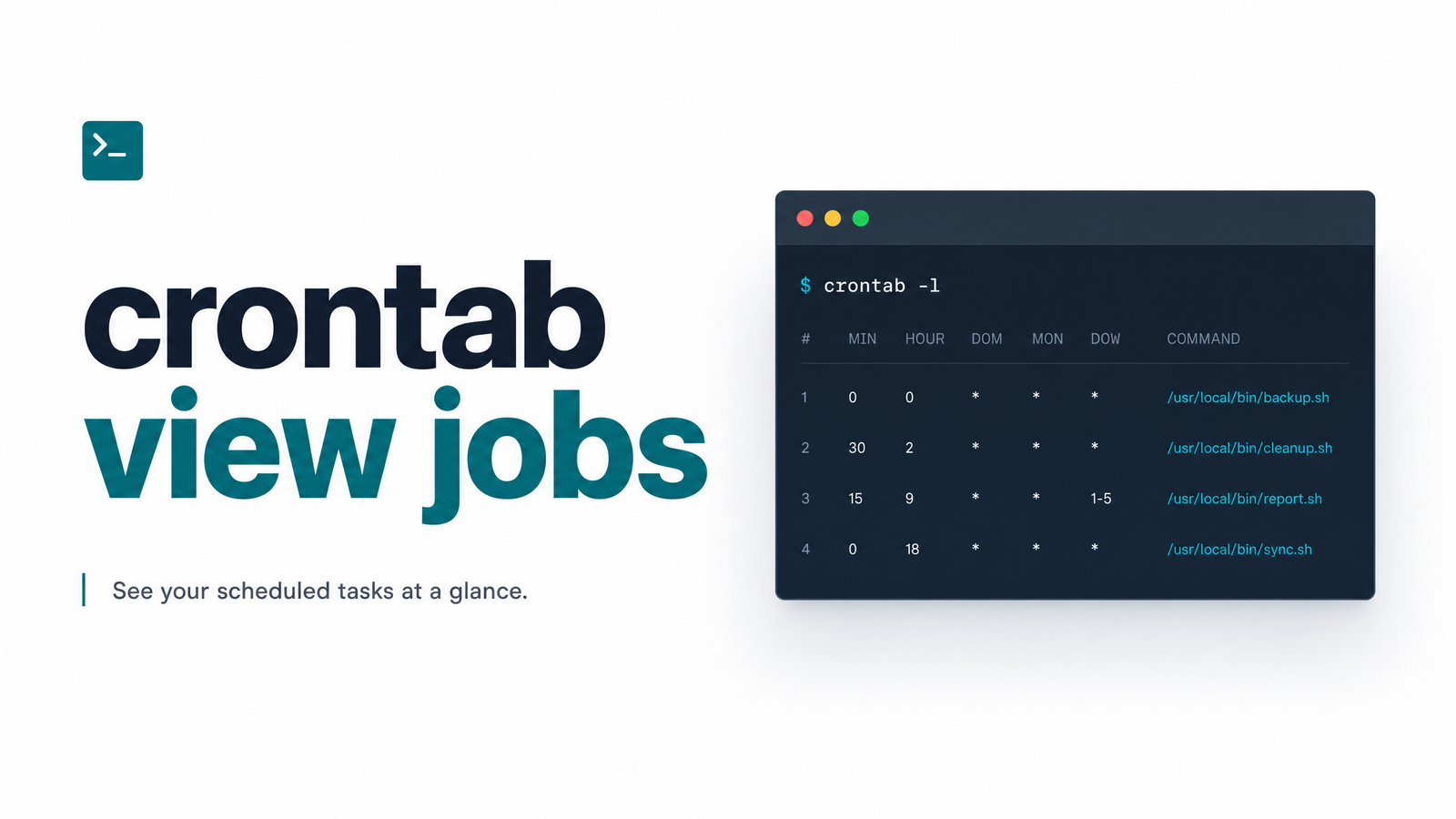
Run crontab -l to view the cron jobs scheduled for the currently logged-in user. It prints the raw crontab file — one line per job, showing the schedule and the command. That answers most "crontab view jobs" searches, but it only covers one of several places cron jobs can live.
The command you need next depends on whose jobs you're looking for and what kind of system you're on. Debugging someone else's server, checking root's schedule, or looking inside a Docker container all require different approaches — and none tell you whether the job you find is actually running successfully. We'll work through each scenario, then that last problem, since it's the one that eventually matters most.
Viewing Your Own User's Cron Jobs
For your own account, crontab -l is the whole answer. It lists your cron jobs exactly as stored, without opening an editor or risking an accidental change — useful for confirming a schedule exists before debugging further.
If the output looks unfamiliar, the complete command reference for crontab -l, -e, and -u covers syntax in full detail. This article stays scenario-focused, so we'll keep moving through cases where a plain crontab -l isn't enough.
Viewing Another User's or Root's Crontab
To view cron jobs for another user, you need elevated privileges and the -u flag: sudo crontab -u username -l. Without sudo, most systems refuse the request outright, since crontabs are private to each account by design.
Reach for this when you've inherited a server and need to view root's crontab or check what a service account has scheduled. The username has to sit between -u and -l — write it as crontab -u deploy -l, not the reverse. If you get a permission error even with sudo, confirm you're actually in the sudoers file or ask whoever administers the box; there's no workaround that bypasses that check, and that's intentional.
Viewing System-Wide and Scheduled Cron Files
Not every scheduled job lives in a personal crontab. Linux systems also run jobs from system-wide locations that crontab -l never touches, which is why a job can be firing on schedule while every user's crontab looks empty.
The main places to check:
- /etc/crontab — a system file with an extra "user" column, letting root schedule commands as any account.
- /etc/cron.d/ — a directory where packages and admins drop individual cron files, each following the same format as
/etc/crontab. - /etc/cron.hourly, cron.daily, cron.weekly, cron.monthly — directories of scripts run by
run-partsat the matching interval, rather than files with explicit schedules.
Some distributions also use systemd timers instead of cron entirely. If a job isn't in any crontab or cron.d file, run systemctl list-timers to see if it's been migrated there. A server's full schedule is often spread across four different places — personal crontabs, /etc/crontab, cron.d, and systemd — so it's worth checking all of them before concluding a job doesn't exist.
Viewing Cron Jobs in Docker, Kubernetes, and Hosting Panels
Containerized and managed environments each have their own way to view scheduled jobs, and none match a bare-metal server exactly.
Docker: if cron runs inside a container, exec into it and run the usual command: docker exec -it container_name crontab -l. If that returns nothing, check whether the image installs jobs via /etc/cron.d/ instead of a user crontab — a common pattern in prebuilt cron images.
Kubernetes: there's no crontab file to view at all. Scheduling is defined by a CronJob resource, inspected with kubectl get cronjobs (or kubectl get cronjob for the full schedule and command). A Kubernetes CronJob spins up a fresh Job and pod on each run, so "viewing the crontab" really means reading the CronJob spec plus the history of Jobs it created.
Hosting panels: cPanel and Plesk hide the crontab file behind a UI. In cPanel, cron jobs sit under Advanced → Cron Jobs, showing each schedule and command in a table. Plesk has an equivalent under Websites & Domains → Scheduled Tasks. Both are reading and writing the same underlying crontab — they just spare you the command line.
When crontab -l Shows Nothing (or 'no crontab for user')
Seeing "no crontab for user" doesn't necessarily mean cron is broken — it usually means you're looking in the wrong place. Before assuming jobs were deleted, check the likely explanations:
- Wrong user context. You may be logged in as a different account than the one the job was created under. Re-run with
sudo crontab -ufor each candidate account.-l - Jobs live outside the personal crontab. As covered above, they might be in
/etc/cron.d/,/etc/crontab, or a systemd timer instead — an empty personal crontab is expected in that case. - Permissions restrictions. Some systems use
/etc/cron.allowor/etc/cron.denyto control who can have a crontab at all; being blocked there can produce a misleading empty result.
A genuinely empty crontab is a valid state too — not every account has scheduled jobs, and that's not an error.
What Viewing a Job Can't Tell You
Even a perfectly readable crontab -l output only proves a job is scheduled — it says nothing about execution history. Cron doesn't log success or failure anywhere visible by default, so a job can fail every single run, or stop running entirely after a bad deploy, while still appearing exactly the same in the listing.
This is the gap that turns "I can see the job" into "I have no idea if it worked." A cron job can fail silently — exit with an error, time out, or simply not be triggered by a stalled cron daemon — and the crontab file will look identical either way. Real cron job monitoring means tracking each run's start time, duration, and exit status, not just confirming the schedule exists. Once you've got the scheduling patterns sorted, the 10 real crontab patterns developers actually use is a useful next stop for writing schedules well — but knowing a job is scheduled is still a different problem from knowing it ran.
Viewing your crontab is step one. Knowing whether that job actually succeeded, how long it took, and getting alerted the moment it fails is a separate layer entirely — one crontab -l was never built to provide. Cronevra adds execution history, failure alerts, and recovery visibility to the same jobs you just learned to list, so a broken schedule never goes unnoticed again. Check the pricing page to see which plan fits your team's job volume.
Frequently Asked Questions
How do I view crontab jobs without editing them?
Run crontab -l, which only lists the current jobs and never opens an editor. crontab -e is the editing command, so as long as you use -l, there's no risk of accidentally changing a schedule while checking it.
Can I view someone else's cron jobs without root access?
No — viewing another user's crontab requires sudo (or being root) combined with crontab -u username -l. Regular users can't read each other's crontabs directly; the system enforces that separation regardless of file permissions on other parts of the account.
Why does crontab -l say 'no crontab for user' even though cron is running jobs?
This usually means the jobs live somewhere other than that user's personal crontab — commonly /etc/crontab, a file in /etc/cron.d/, or a systemd timer. It can also mean you're checking the wrong user account, since each user's crontab is completely separate.
How do I list cron jobs running inside a Docker container?
Use docker exec -it container_name crontab -l to run the command inside the container's shell. If that returns nothing, check whether the image schedules jobs through a file in /etc/cron.d/ instead of a user crontab, which is common in minimal cron-based images.
How is a Kubernetes CronJob different from viewing a regular crontab?
A Kubernetes CronJob is a resource definition, not a crontab file, so you inspect it with kubectl get cronjobs or kubectl get cronjob instead of crontab -l. Each scheduled run creates a new Job and pod, meaning the execution history lives in the cluster's Job objects rather than in any single file.
Does viewing my crontab tell me if a job succeeded or failed?
No — crontab -l only shows what's scheduled to run, not whether it actually executed or completed successfully. A job can fail silently, time out, or stop firing entirely while the crontab entry stays unchanged, which is why separate execution monitoring is necessary to catch real failures.