Cron Job Command: Syntax, Crontab Flags & Silent Failures
September 8, 2026
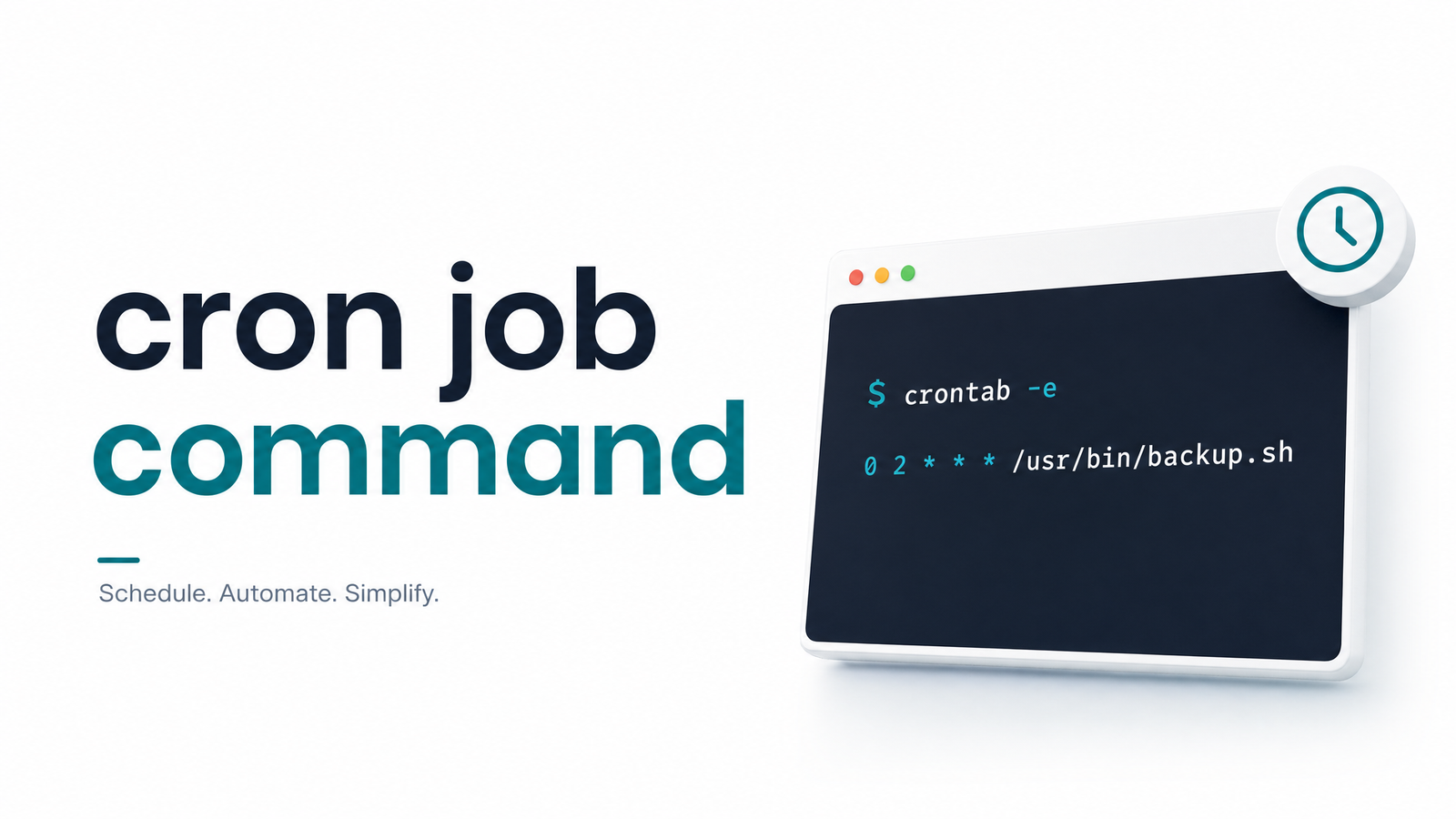
Search for "cron job command" and you'll find two questions tangled into one phrase. Some people mean the crontab management command — the tool you use to edit, list, or remove scheduled jobs. Others mean the actual command written inside a crontab line — the thing that runs at 3 a.m. and either does its job or fails without telling anyone. Both matter, and confusing them is why so many cron setups look correct and still break.
This article separates the two, gives a working reference for each, and covers the part almost nothing documents well: why a command that runs perfectly when you type it manually can fail the moment cron takes over.
What Does "Cron Job Command" Actually Mean?
The crontab command meaning depends on context. "Run the crontab command" usually means invoking crontab itself from the terminal — the interface to the cron daemon's job table. "My cron job command isn't running" means the executable line inside that table: the script, binary, or shell snippet cron actually attempts to execute on schedule.
Treat these as two layers. The crontab command is the management layer — how you get instructions into cron. The command portion of a cron entry is the execution layer — what cron actually runs, in an environment that looks nothing like your interactive shell. Most "cron isn't working" problems trace back to confusing which layer is broken.
The Crontab Command: Managing Jobs from the CLI
The crontab command line reference is short enough to memorize:
crontab -e— Opens your crontab in the default editor. Add, edit, or comment out job lines here.crontab -l— Lists the current user's crontab to stdout. Use it to confirm what's actually scheduled, not what you think you saved.crontab -r— Removes the entire crontab for the current user. No confirmation prompt, no undo — runcrontab -lfirst if you're unsure.crontab -u username— Targets another user's crontab, but only works with permission (typically root). Combine with-e,-l, or-r:crontab -u deploy -llists thedeployuser's jobs.
A common point of confusion is crontab -e vs crontab -l: -e edits, -l is read-only for auditing. If a job "isn't running," -l is your first move — it tells you whether the line exists as you remember writing it, on the right user's crontab.
Anatomy of the Command Portion of a Cron Line
A crontab line has six fields: five time fields, then everything else is the command.
*/15 * * * * /usr/bin/curl -s -o /dev/null https://api.example.com/health >> /var/log/health-check.log 2>&1
The first five fields (*/15 * * * *) set the schedule. Everything after — starting at /usr/bin/curl — is passed to a shell (/bin/sh by default, not your login shell) as a single command line. Cron doesn't interpret aliases, doesn't source your .bashrc, and doesn't expand ~ reliably. It hands the string to the shell and executes it verbatim, with a minimal environment.
That's the core of cron command syntax: time fields set the schedule, the command portion is a literal instruction executed in a stripped-down environment. Arguments, flags, and redirection all belong in that single command string, and any environment variables the command needs must be set inline or exported earlier in the crontab file.
Why Commands That Work in Your Shell Fail in Cron
This is the single biggest source of "cron job command not running" reports, and it's almost never a scheduling bug — it's an environment bug.
PATH is minimal. Your interactive shell's PATH includes directories for tools installed via version managers, Homebrew, or local project bins. Cron's PATH is typically just /usr/bin:/bin. A command like node script.js that works in your terminal can fail in cron because node isn't found. Fix it with the full path (/usr/local/bin/node script.js) or by explicitly setting PATH at the top of the crontab.
Environment variables don't carry over. Anything set in .bashrc, .profile, or your shell session isn't visible to cron. If a script depends on NODE_ENV, API keys, or a virtualenv activation, cron won't have it unless you define it in the crontab or source an env file inside the command itself.
Relative paths break. Cron typically starts jobs from the user's home directory, not the directory you're in when testing manually. A script that does ./config.json will fail unless you cd into the right directory first: cd /opt/app && ./run.sh.
Quoting and escaping behave differently in the crontab file — particularly percent signs (%), which cron treats as newlines unless escaped with a backslash. A % in a date format string or password can silently truncate.
None of these failures throw a visible error to you. The job just doesn't produce the output you expected, and cron moves on.
Writing Commands That Fail Loudly, Not Silently
A handful of habits turn "silent failure" into "immediate, visible failure":
Use absolute paths for everything — the interpreter, the script, and any files it touches. /usr/bin/python3 /opt/app/backup.py beats python3 backup.py every time.
Set PATH and SHELL explicitly at the top of the crontab if your jobs depend on tools outside /usr/bin:/bin.
Redirect cron job output deliberately. By default, cron emails any stdout/stderr to the crontab owner — which either floods your inbox or, if mail isn't configured, vanishes into nothing. Redirect intentionally: >> /var/log/job.log 2>&1 appends both streams to a log file you can check. If you want output suppressed entirely, > /dev/null 2>&1 does that, but only use it once you have another way to detect failure.
Check exit codes. Cron doesn't care whether your script exited 0 or 1 — it doesn't alert on failure by default. A nonzero exit code means the job failed, but nothing surfaces that to you unless you check for it.
That last point is the real gap. A command can be syntactically flawless, correctly scheduled, and still fail every night because of a permissions error, a timeout, or a dependency that's down — and cron will never tell you. The only way to know is to have something outside the job watching for it.
That's the purpose of wrapping scheduled commands with a monitoring check-in: append a lightweight call to your command so a successful run pings out, and a missed or failed run gets flagged automatically. A pattern as simple as /opt/app/run.sh && curl -fsS https://cronevra.com/ping/your-job-id confirms success; if the script fails or never runs, the ping never fires and you get alerted instead of finding out three days later. Cronevra is built for exactly this — it watches for missed check-ins and failures on your scheduled jobs so a "valid" cron command that quietly stops working doesn't stay invisible.
Frequently Asked Questions
What is the crontab command and what do its flags do?
The crontab command manages a user's scheduled jobs from the CLI. -e edits the crontab, -l lists it without editing, -r removes it entirely with no confirmation, and -u username targets another user's crontab (requires permission). Run crontab -l before crontab -r if you're unsure what you're deleting.
How is the command portion of a crontab line structured?
After the five time fields, everything else on the line is passed as a single string to /bin/sh for execution. This includes the executable path, its arguments, and any output redirection, all run in a minimal environment without your shell's aliases, PATH additions, or exported variables.
Why does a cron command that runs fine manually fail when scheduled?
It's almost always an environment mismatch: cron's PATH is limited (often just /usr/bin:/bin), environment variables from .bashrc aren't loaded, and the working directory defaults to home rather than your project folder. Using absolute paths, explicit environment variables, and a cd into the right directory before running the command fixes most of these cases.
How do you prevent a cron job command from failing without notice?
Combine defensive command-writing — absolute paths, checked exit codes, logged output — with an external monitoring check-in that alerts you when a run doesn't happen or fails. Cron itself has no built-in alerting for failures, so without an outside watcher, a broken job can run silently for a long time.
How do you redirect or suppress cron job command output?
Append >> /path/to/log 2>&1 to the command to send both stdout and stderr to a log file instead of triggering cron's default email behavior. Use > /dev/null 2>&1 only if you already have another way to detect failures, since this discards output entirely.