Cron Cheatsheet: Syntax, Commands, Logs & Monitoring
August 20, 2026
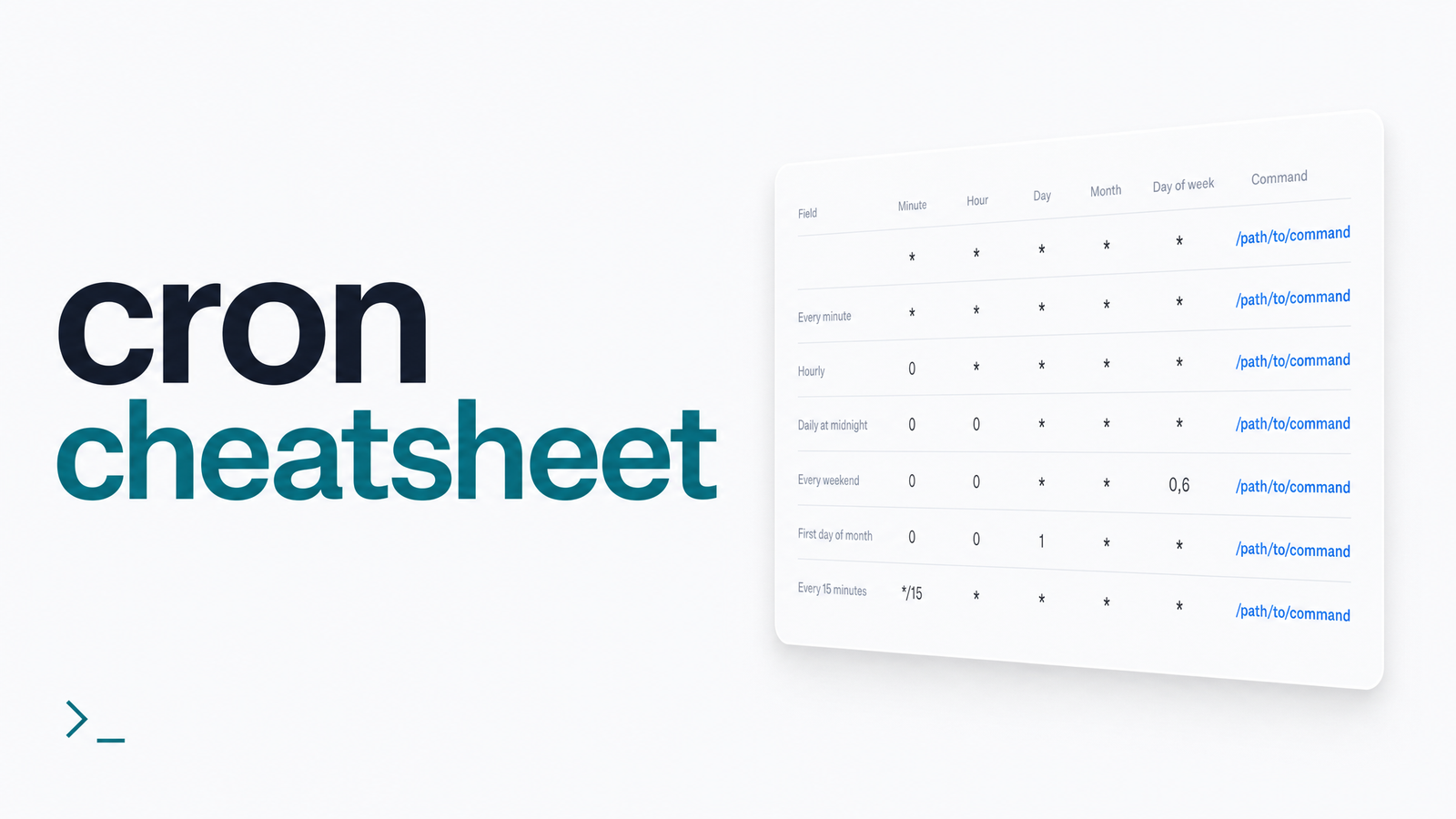
What's Actually in a Cron Cheatsheet
Most pages calling themselves a cron cheatsheet are really just the five-field schedule table, copied for the hundredth time. This one covers the full day-to-day surface area: schedule syntax, the @-prefixed special strings, the environment variables that quietly change job behavior, the commands you'll actually type, where logs land across common systems, and the blind spot cron itself leaves open. Bookmark this instead of juggling man pages and half-finished tutorials.
Cron Schedule Syntax at a Glance
Every cron entry follows the same five-field order: minute, hour, day-of-month, month, day-of-week, followed by the command. A quick orientation table covers the schedules developers reach for most often:
| Schedule | Expression |
|---|---|
| Every minute | * * * * * |
| Every hour, on the hour | 0 * * * * |
| Every day at midnight | 0 0 * * * |
| Every Monday at 9am | 0 9 * * 1 |
| First of every month | 0 0 1 * * |
That's enough to orient yourself, but step values (*/15), ranges (1-5), and lists (1,15,30) each have their own quirks. For the complete symbol reference and copy-paste schedules, use this crontab cheatsheet alongside the summary table above.
Special Strings & Environment Variables
Cron supports shorthand strings so you don't have to hand-write common schedules:
@reboot— runs once at startup@yearly(or@annually) — runs once a year, equivalent to0 0 1 1 *@monthly— runs once a month, equivalent to0 0 1 * *@weekly— runs once a week, equivalent to0 0 * * 0@daily(or@midnight) — runs once a day, equivalent to0 0 * * *@hourly— runs once an hour, equivalent to0 * * * *
These save typing, but they're just aliases — nothing magic happens under the hood.
Environment variables matter just as much as scheduling, and they're the usual reason a job that runs fine manually fails silently under cron. Cron's default SHELL is often /bin/sh, not your interactive shell, and PATH is stripped down to something minimal like /usr/bin:/bin — so any command relying on a tool installed via nvm, rbenv, or a custom install path will fail with "command not found" even though it works fine from your terminal. Setting SHELL and PATH explicitly at the top of the crontab, or using absolute paths inside scripts, fixes most of these mismatches.
The other one worth knowing is MAILTO, which tells cron where to send a job's output by email. It sounds like a built-in alerting system, but it has real limits around mail server configuration and what actually triggers a message — covered in full in the MAILTO deep-dive. Treat SHELL, PATH, and MAILTO as the core variables to check first whenever "it works manually but not in cron" comes up.
Commands You'll Actually Use
Forget the full crontab man page — in practice, this short list covers nearly everything:
crontab -e— open your crontab in the default editor to add or change jobscrontab -l— list the current user's scheduled jobs without opening an editorcrontab -r— remove the current user's entire crontab (no confirmation prompt, so use carefully)crontab -u username -l— view another user's crontab (requires the right permissions)systemctl status cron(orcrondon some distros) — check whether the cron daemon is actually runningjournalctl -u cron— view the daemon's recent activity log via systemd
crontab -e and crontab -l deserve more detail than a one-liner. For editor behavior, environment quirks, and GUI alternatives, see the cron editor guide. For listing jobs across multiple users, system crontabs, Docker containers, and Kubernetes CronJobs — not just your own user crontab — see how to list cron tasks.
Where Cron Logs Actually Live
When a job seems to have not fired, the log location depends on the distro and how syslog is configured:
| System | Typical log location |
|---|---|
| Debian/Ubuntu | /var/log/syslog (filter with grep CRON) |
| RHEL/CentOS/Fedora | /var/log/cron |
| systemd-based distros | journalctl -u cron or journalctl -u crond |
| Job output via MAILTO | local mail spool, e.g. /var/mail/username |
| Containers | often nowhere — stdout may be discarded unless redirected |
The practical challenge isn't just finding the file — it's that most of these only confirm the daemon fired the command at the scheduled time. They don't tell you whether the command succeeded, timed out, or crashed halfway through.
The One Thing No Cheatsheet Covers: Silent Failures
This is the gap every reference above shares: syntax, commands, and logs can confirm cron attempted to run something. None of them tell you whether the job actually succeeded, and none of them alert you if the job stops running entirely — a bad deploy overwrites the crontab, a server reboots without @reboot re-registering the job, or a script starts silently exiting with an error code nobody's watching for. Cron itself has no concept of "this should have run by now and didn't." That's the core problem behind silent cron failures, and it's exactly what dedicated cron job monitoring tools exist to catch.
Tools in this space take different approaches worth understanding before you pick one. Dead Man's Snitch works on a simple "ping or get alerted" model, while Cronitor adds more monitoring depth alongside its own tradeoffs in pricing and setup complexity.
No cheatsheet, man page, or log file will ping you the moment a job silently stops running — that requires something actively watching execution history against an expected schedule. That's the specific gap Cronevra fills: it tracks every run, flags missed or failed executions, and alerts you before a silent failure turns into a bigger incident. Check the homepage or the pricing page to see how it fits into your current setup.
Frequently Asked Questions
What's the difference between a cron cheatsheet and a crontab cheatsheet?
A cron cheatsheet is the broader reference — schedule syntax, special strings, environment variables, commands, and logs — while a crontab cheatsheet typically focuses narrowly on the schedule expression table itself. This page functions as the former, with links out to the full crontab schedule reference for deeper syntax detail.
What do the five fields in a cron schedule actually mean?
In order, they are minute (0-59), hour (0-23), day-of-month (1-31), month (1-12), and day-of-week (0-6, where 0 is Sunday). A * in any field means "every value," so * * * * * runs every minute and 0 9 * * 1 runs at 9am every Monday.
What does @reboot do in cron, and can I rely on it?
@reboot schedules a job to run once when the cron daemon starts, typically at system boot. It's useful for startup tasks, but reliability depends on cron starting cleanly and the crontab surviving deploys or configuration changes — it isn't a guarantee the job ran, just an instruction that it should.
Where are cron job logs stored on Linux?
Location varies by distro: Debian and Ubuntu typically log to /var/log/syslog, RHEL-based systems use /var/log/cron, and systemd-based distros expose logs through journalctl -u cron. Job output sent via MAILTO lands in the local mail spool instead of a log file.
How can I see what cron jobs are scheduled without opening the editor?
Run crontab -l to list the current user's scheduled jobs, or crontab -u username -l to view another user's crontab with the right permissions. This only shows user crontabs, not system-level jobs, Docker cron containers, or Kubernetes CronJobs — see the guide to listing cron tasks for those.
Why didn't I get a MAILTO email when my cron job failed?
MAILTO only sends mail if the system's mail transfer agent is properly configured, and it's typically triggered by command output or a non-zero exit code — not by every kind of failure. Misconfigured mail servers, silently swallowed errors, or jobs that hang instead of exiting are common reasons the email never arrives, detailed further in the MAILTO explainer.