Cron Cheat Sheet: Commands, Special Strings & Debugging
August 21, 2026
What Actually Belongs on a Cron Cheat Sheet
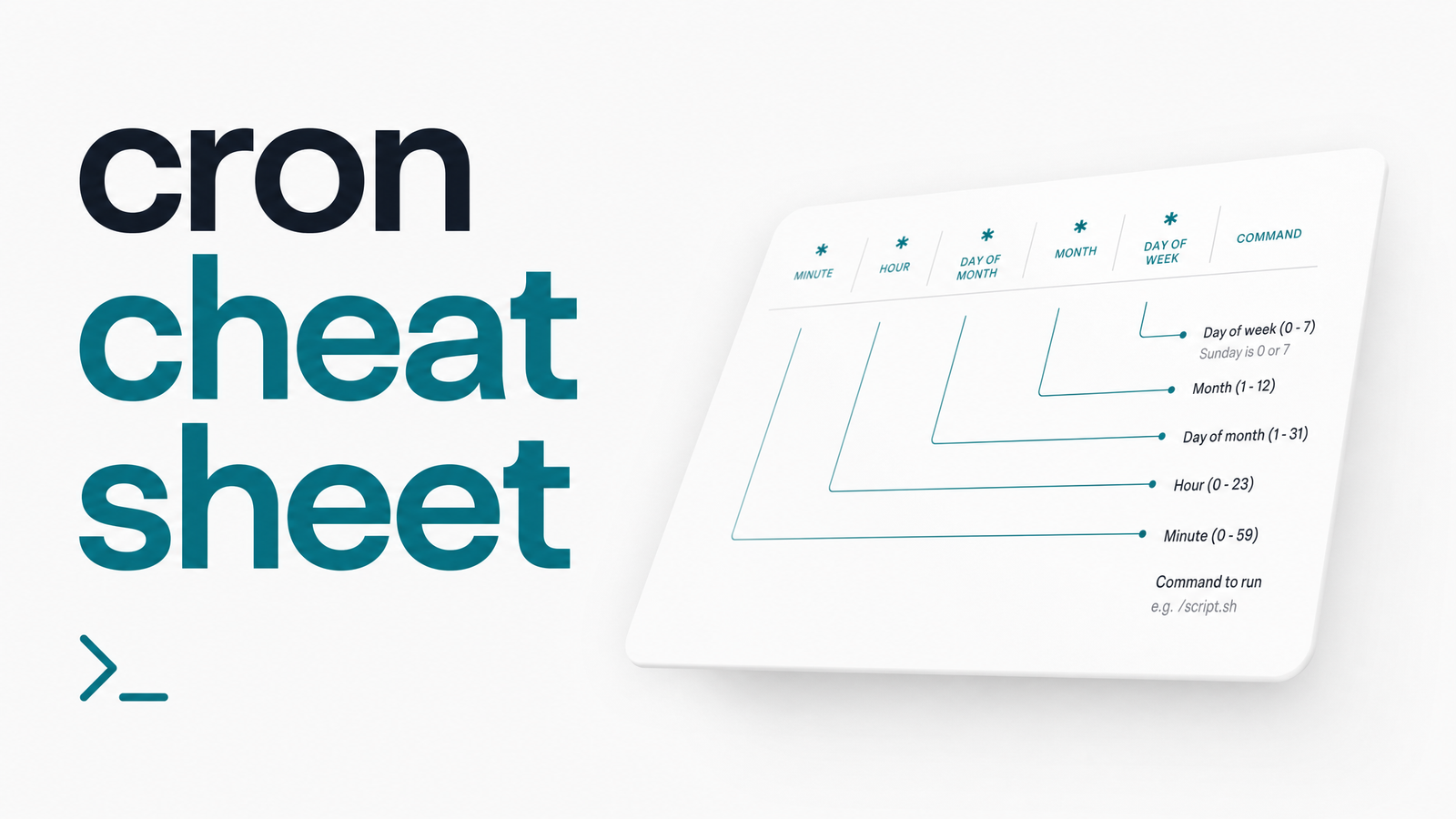
Most cron cheat sheets stop at the five-field schedule syntax — minute, hour, day of month, month, day of week. That refresher matters, but it's not what slows you down at 2 a.m. What costs time is forgetting the right crontab flag, guessing what @reboot expands to, or staring at a script that runs perfectly by hand but silently dies under cron.
This is that other cheat sheet: the operational one. It bundles the commands, special strings, environment quirks, and debugging one-liners developers reach for constantly but never quite memorize. For the full syntax breakdown and log-location details, see our cron syntax and logging cheat sheet. Here, we're focused on everything a quick reference for cron needs beyond the schedule grid.
Crontab Command Reference
These are the crontab commands you'll type dozens of times a year and still second-guess under pressure.
| Command | What it does |
|---|---|
crontab -e |
Edit the current user's crontab (opens in $EDITOR) |
crontab -l |
List the current user's crontab entries |
crontab -r |
Remove the current user's entire crontab — no confirmation prompt |
crontab -u username -l |
List another user's crontab (requires root) |
sudo crontab -u username -e |
Edit another user's crontab as root |
/etc/crontab |
System-wide crontab; includes a username field before the command |
/etc/cron.d/* |
Drop-in directory for package-managed or scripted system cron jobs |
/etc/cron.daily/, .hourly/, .weekly/ |
Directories run by run-parts, one script per file, no schedule field needed |
The two commands worth burning into memory are crontab -e for edits and crontab -l for a sanity check before assuming nothing's scheduled. crontab -r deserves respect — it deletes without asking. For more on editing workflows, including GUI and web-based builders, see our crontab -e editor guide.
Special Time Strings & Shortcuts
Cron's special strings save you from writing out raw five-field expressions for schedules you use constantly.
| String | Expands to |
|---|---|
@reboot |
Run once at startup |
@yearly / @annually |
0 0 1 1 * — once a year |
@monthly |
0 0 1 * * — first of the month |
@weekly |
0 0 * * 0 — midnight Sunday |
@daily / @midnight |
0 0 * * * — once a day |
@hourly |
0 * * * * — top of every hour |
@reboot is the one people misuse most — it fires on system startup, not on a fixed interval, so it's only useful for jobs meant to run once per boot (cache warmers, cleanup scripts, service kickstarts). Not every cron implementation supports all of these identically; Vixie cron and its derivatives (the base for most Linux distros) support the full set, but always confirm on unusual systems.
Environment Variables & Common Gotchas
The single most common cron support question is some version of "it works when I run it manually, but not under cron." The answer is almost always environment: cron runs jobs with a minimal shell environment, not your interactive login shell.
A few variables matter more than the rest:
- PATH — cron's default PATH is typically just
/usr/bin:/bin, so anything installed via nvm, rbenv, Homebrew, or a custom install location won't be found unless you set PATH explicitly in the crontab or use absolute paths in your script. - SHELL — defaults to
/bin/sh, not necessarily the shell you use interactively. Bash-specific syntax in a script called without#!/bin/bashcan fail silently. - HOME — may not match your usual home directory, which breaks scripts relying on
~expansion or config files loaded relative to it. - MAILTO — set at the top of a crontab, this tells cron where to email a job's output. It's a built-in, no-setup way to catch stdout/stderr, though it depends on a working local mail transport agent. Our MAILTO deep dive covers its syntax and real limits.
The fix for most PATH issues: hardcode the PATH variable at the top of the crontab, or use full paths (/usr/local/bin/node instead of node) inside scripts. When in doubt, source your profile explicitly at the top of the script rather than assuming cron inherited it.
Debugging & Testing One-Liners
You don't have to wait for the next scheduled run to test a cron job. A handful of one-liners cover most debugging needs:
- Run the exact command cron would run: copy the command from your crontab and paste it into a fresh, non-interactive shell —
env -i /bin/sh -c 'your-command'— to mimic cron's stripped environment. - Check the exit code immediately after:
echo $?—0means success, anything else is a failure worth investigating. - Redirect output for a permanent record: append
>> /path/to/job.log 2>&1to the crontab line to capture both stdout and stderr. - Force an immediate run for testing: temporarily set the schedule to a minute or two in the future, or just call the script directly and check its exit code — this is faster and doesn't touch the schedule.
- Tail logs to see what actually happened:
journalctl -u cronorjournalctl -u crondon systemd-based distros/var/log/syslogon Debian/Ubuntu/var/log/cronon RHEL/CentOS/Fedora- macOS routes cron activity through the unified logging system —
log show --predicate 'process == "cron"'is the equivalent lookup, since/var/log/syslogdoesn't exist there.
These commands answer "did it run" and "did it exit cleanly." They don't answer "did it run when expected" over time, which is where static debugging runs out of road.
The One Thing a Cheat Sheet Can't Do: Catch a Silent Failure
No cheat sheet — this one included — alerts you when a job fails. Cron doesn't page anyone by default. If a script exits non-zero, if a host reboots and @reboot never fires, or if a job simply stops running because a dependency broke, cron stays quiet unless MAILTO is configured and mail delivery actually works.
A real monitoring checklist asks four questions no static reference can answer on its own:
- Did the job run at its scheduled time at all?
- Did it finish, or is it still hanging?
- Did it exit with a failure code?
- Did it run far longer than usual, suggesting a stuck process?
Answering those reliably requires something watching from outside the job itself — tracking execution history, flagging missed runs, and alerting on failure or timeout. That's the gap Cronevra fills: it turns cron and scheduled HTTP jobs into monitored, alertable processes, with execution history and recovery alerts instead of silence. If your jobs matter enough to schedule, they're worth knowing about when they stop working — check Cronevra's pricing to see what fits your setup.
Frequently Asked Questions
Is there a difference between a cron cheat sheet and a crontab cheat sheet?
In practice, no — "cron cheat sheet" and "crontab cheat sheet" refer to the same reference material, since crontab is the file and command used to configure cron jobs. Some cheat sheets lean toward schedule syntax while others, like this one, focus on commands, environment variables, and debugging instead.
What's the fastest way to test a cron job without waiting for its schedule?
Run the exact command from your crontab directly in a shell and check echo $? for the exit code immediately after. Wrapping it with env -i /bin/sh -c 'command' more closely mimics cron's stripped-down environment than your normal terminal session.
Why does a cron job work when I run it manually but fail when cron runs it?
This almost always comes down to environment differences — cron uses a minimal PATH (often just /usr/bin:/bin), a different default shell, and possibly a different HOME directory than your interactive session. Hardcoding PATH in the crontab or using absolute paths in scripts fixes most cases.
What does MAILTO do and do I still need it if I use a monitoring tool?
MAILTO is a crontab variable that emails a job's stdout and stderr output whenever it produces any. It's useful as a lightweight, built-in signal, but it depends on local mail delivery working and doesn't track missed runs or long-running jobs the way dedicated monitoring does.
How do I see cron's exit code or know if a job actually failed?
Check $? immediately after running the command manually — 0 means success, any nonzero value indicates failure. For scheduled runs you didn't trigger yourself, you need either MAILTO output, log entries, or an external monitoring tool tracking each execution's result.
Where does cron log output on Linux vs macOS?
On systemd-based Linux distros, use journalctl -u cron or journalctl -u crond; Debian/Ubuntu also write to /var/log/syslog, and RHEL-based systems use /var/log/cron. macOS doesn't maintain a syslog file for cron — use log show --predicate 'process == "cron"' to query the unified logging system instead.