Check Crontab: The Full Verification Workflow
August 16, 2026
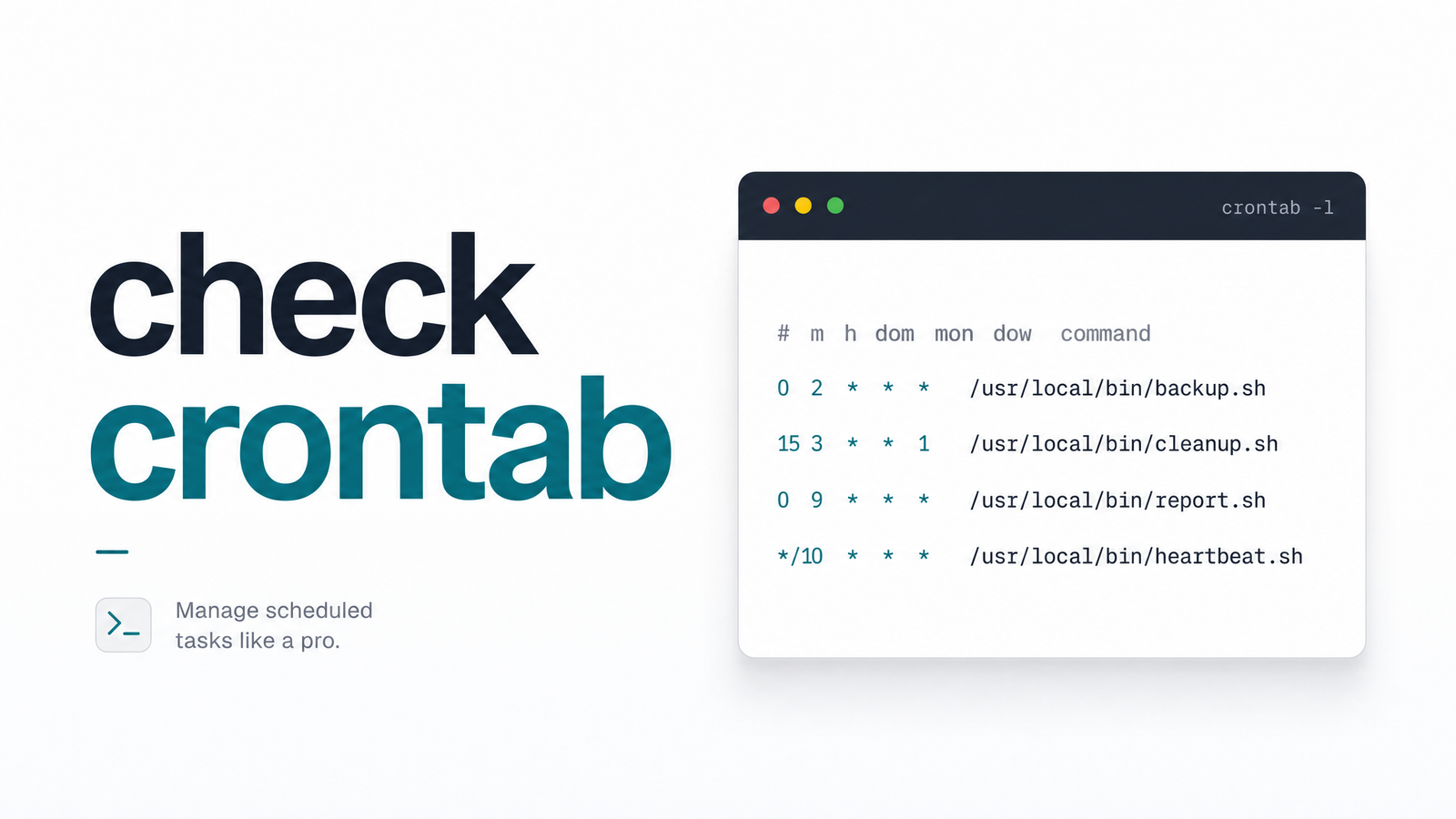
When something goes wrong with a scheduled task, "check crontab" is usually the first thing a developer types into a search bar. But that phrase hides at least four different questions, and answering only one of them is how silent failures slip through.
What "Checking Crontab" Actually Means
A crontab check can mean wildly different things: "let me see what's in my crontab file," "I need to confirm cron itself is running," "I just edited this file and I'm scared I broke the syntax," or — underneath it all — "did my job actually do what it was supposed to do?"
Most articles stop at the first meaning, showing the listing command and calling it done. That's not enough when a job silently stops firing, or fires but fails quietly. This guide walks through the full sequence: confirming entries exist, confirming the daemon is alive, catching syntax errors before they cause damage, confirming execution happened, and — the step almost everyone skips — confirming the job actually succeeded.
Step 1: Confirm Crontab Has the Entries You Expect
Running crontab -l prints the current user's crontab entries to the terminal. If you're troubleshooting a job scheduled under your own account, this is the command you want.
The catch is scope. crontab -l only shows the calling user's file — if the job was set up under root, or under a service account like www-data or deploy, your personal crontab will look empty even though the job exists elsewhere on the system. To check a different user's entries, you generally need elevated privileges and a user-specific flag. Getting this distinction wrong is one of the most common reasons people conclude "my job disappeared" when it never left root's crontab.
For the full rundown of every listing variant — including root vs. non-root behavior and edge cases — see the complete command reference for showing crontab jobs, and the guide to viewing cron tasks across Docker, cPanel, and multi-user setups if you manage jobs across mixed environments.
Step 2: Check That the Cron Daemon Is Actually Running
Entries existing in a crontab file tells you nothing about whether anything is scheduled to actually execute. That depends entirely on the cron daemon — usually cron or crond — being alive.
On most modern Linux distributions, check its status with:
systemctl status cron
or, on systems using the crond naming convention:
systemctl status crond
If the service shows as inactive or failed, that's your answer — no amount of correct syntax matters if the scheduler isn't running. As a secondary check, confirm the process is alive at the OS level:
ps aux | grep cron
Seeing a crond or cron process is a good sign, but it's still not proof anything successfully fired — it just tells you the engine is on.
Step 3: Check Your Crontab Syntax Before It Bites You
If you've just edited your crontab, a syntax check matters — cron doesn't warn you politely, it just skips the malformed line.
Common mistakes worth ruling out:
- A missing trailing newline at the end of the file, which can cause the last entry to be silently ignored.
- Wrong field counts — cron expects five time fields plus the command, and an extra or missing field shifts everything.
- Assuming your interactive shell's
PATHis available. Cron runs with a minimal environment, so a script that works fine from your terminal can fail when triggered by cron because it can't find a binary.
To validate your schedule expression against known-good patterns before saving, the examples of real crontab patterns developers use is a fast sanity check. If checking your crontab reveals the file itself is a mess, the guide to generating a crontab file correctly walks through rebuilding it cleanly rather than patching around errors.
Step 4: Check for Evidence the Job Actually Fired
Once the daemon is running and syntax checks out, the next question is whether a given job actually attempted to run at its scheduled time.
Three places to look:
- Mail output — by default, cron emails the output of a job to the local user if
MAILTOis set, often the fastest way to see stdout/stderr from a run. - Exit codes — a non-zero exit code from your script signals something broke inside the job, separate from cron itself.
- System logs — entries in
/var/log/cron.logor your syslog (viajournalctlon systemd systems) show cron's own record of triggering a command, confirming execution attempts without telling you what happened inside the script.
This builds a rough execution history, but it stops short of answering the question that actually matters to most teams.
Step 5: The Check Most People Skip — Did It Actually Succeed?
Here's the gap that trips up almost everyone: a process launching is not the same as a job succeeding. Cron logs and exit codes tell you the command started and returned some status — they don't tell you whether the HTTP request your job made actually completed, whether the API call it depended on returned a good response, or whether the task's logic ran to completion instead of hanging or timing out silently.
"No errors in the log" is not proof of correctness. A script can start, silently skip its core logic due to a bad condition, and exit 0 — and your logs will look perfectly clean. This is exactly the blind spot covered in what ping health really means for cron jobs, and it's why even basic healthcheck pings have limits, as explained in how healthchecks for cron jobs work and where they fall short.
A Quick Crontab Verification Checklist
- Run
crontab -lto confirm entries exist under the right user. - Check whether the cron daemon is active with
systemctl status cron(orcrond). - Confirm the process is alive with
ps aux | grep cron. - Review the crontab file for missing newlines, wrong field counts, or PATH assumptions.
- Check mail output, exit codes, and
cron.log/syslog for execution evidence. - Confirm the job's actual task — the HTTP request or script logic — completed successfully, not just that it launched.
When Manual Checking Isn't Enough
This workflow holds up fine for one job on one server. It breaks down fast once you're running dozens of scheduled jobs across multiple machines, because crontab and OS-level checks only ever confirm that a process launched — never that the underlying HTTP request or task logic actually completed the way it should have. Multiply that blind spot across every job you own, and manual verification stops being a workflow and becomes a part-time job.
That's the gap automated cron job monitoring is built to close. Cronevra tracks whether each scheduled job actually reports success, sends alerts the moment a run goes missing or fails, and gives you a single dashboard instead of dozens of terminal sessions — so "checking crontab" stops being something you do manually every time something feels off.
Frequently Asked Questions
How do I check if a crontab job is currently running?
Check the process table with ps aux | grep to see if the job's process is actively executing. To confirm the scheduler itself is enabled, also check systemctl status cron or crond — an active daemon plus a visible process means the job is running as expected.
What's the exact command to see my current crontab entries?
Run crontab -l to list the crontab entries for the currently logged-in user. Remember this only shows your own user's file — jobs scheduled under root or a service account require checking that specific user's crontab instead.
How can I check my crontab syntax before saving it?
Review each line for exactly five time fields followed by the command, make sure the file ends with a trailing newline, and avoid relying on your shell's full PATH since cron runs with a minimal environment. Comparing your line against known-good scheduling patterns is a fast way to catch formatting mistakes before you save.
Why does my crontab show no errors but the job never seems to run?
A clean log usually means the process launched and exited without an error code — it doesn't mean the job's actual logic, like an HTTP request or database call, completed successfully. Scripts can exit 0 while silently skipping their core task, which is why exit codes and logs alone aren't proof of success.
How do I check crontab logs if my system doesn't use syslog?
Check journalctl -u cron (or crond) on systemd-based systems, which captures daemon activity even without a traditional syslog setup. If neither is available, cron's MAILTO output or application-level logging inside the script itself becomes your primary record of execution.
Does checking crontab locally prove the job actually succeeded?
No — local and OS-level checks only confirm that cron triggered the process, not that the job's actual task completed correctly. Confirming true success requires the job itself to report completion, which is the gap automated monitoring and healthcheck pings are designed to close.